
how to fix mouse lag in fullscreen games usually comes down to one of three things, input buffering (often from V-Sync or frame pacing), Windows or driver features fighting your game, or a simple mismatch between your mouse polling and your actual FPS.
If you play shooters or any aim-heavy game, even a tiny delay feels bigger than it “should” because your brain expects immediate feedback, so what looks like “lag” can also be inconsistent frame time, not your mouse hardware.
I’m going to help you separate those causes quickly, then walk through fixes that work on most Windows gaming PCs without turning your system into a science project.
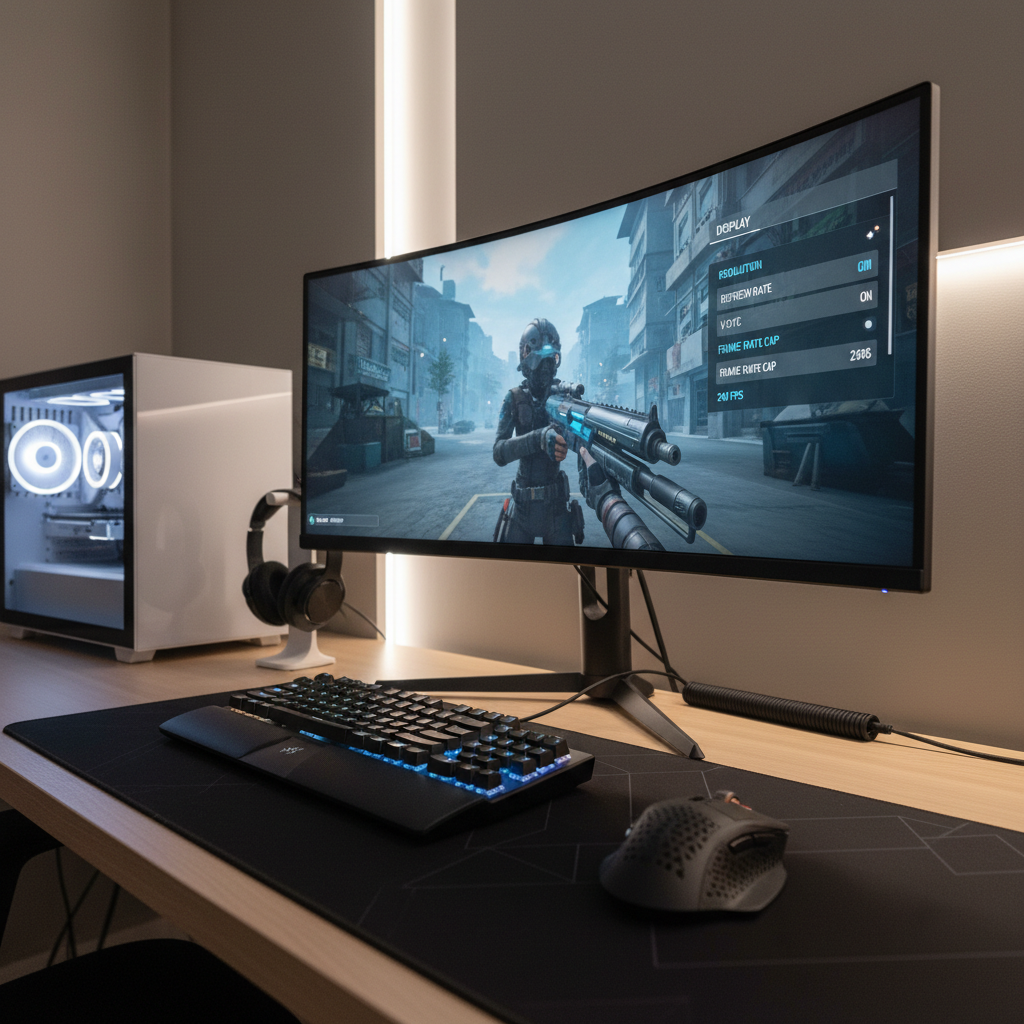
Why mouse lag shows up specifically in fullscreen games
Fullscreen changes the way Windows presents frames to your display, and that presentation path can add buffering. With some settings, you get smoother visuals at the cost of extra input delay.
- V-Sync and triple buffering can add queued frames, which feels like “floaty” mouse movement.
- Borderless vs exclusive fullscreen behaves differently depending on Windows version and per-game implementation.
- Frame time spikes (micro-stutter) often get interpreted as mouse lag because your aim updates unevenly.
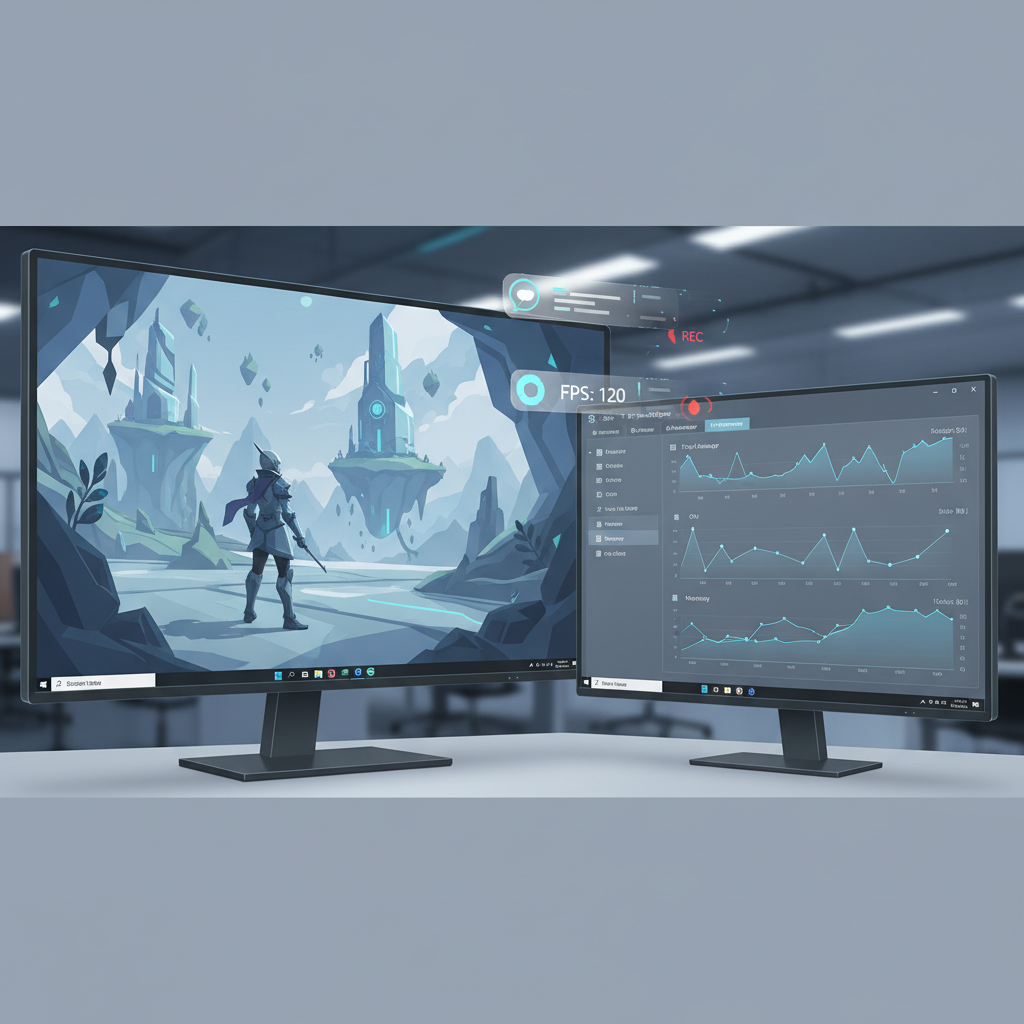
- Overlays and capture hooks (FPS counters, chat overlays, recording) can interfere with the render chain.
According to Microsoft, Optimizations for windowed games changes how windowed and borderless modes are presented, which can affect latency and performance depending on your setup and the game.
Quick self-check: identify what kind of “lag” you actually have
Before changing five settings at once, do a 2-minute check. The goal is to label the symptom so you don’t “fix” the wrong thing.
Fast checklist
- Delay: you move the mouse, the camera reacts a beat later, consistently.
- Jitter: the camera responds on time but skips or feels uneven.
- Accel-like float: small movements feel too slow, big swipes overshoot.
- Only in one game: likely an in-game setting, engine issue, or overlay conflict.
- Only in fullscreen: likely V-Sync/buffering, fullscreen optimizations, or refresh-rate mismatch.
If you can, enable the game’s frame-time graph (or an FPS overlay) for one match. If FPS looks “fine” but frame time spikes, you’re chasing pacing, not the mouse.
Settings that most often fix mouse lag (start here)
These are the highest-impact toggles for how to fix mouse lag in fullscreen games, and they’re also easy to roll back.
1) V-Sync, G-Sync/FreeSync, and frame caps
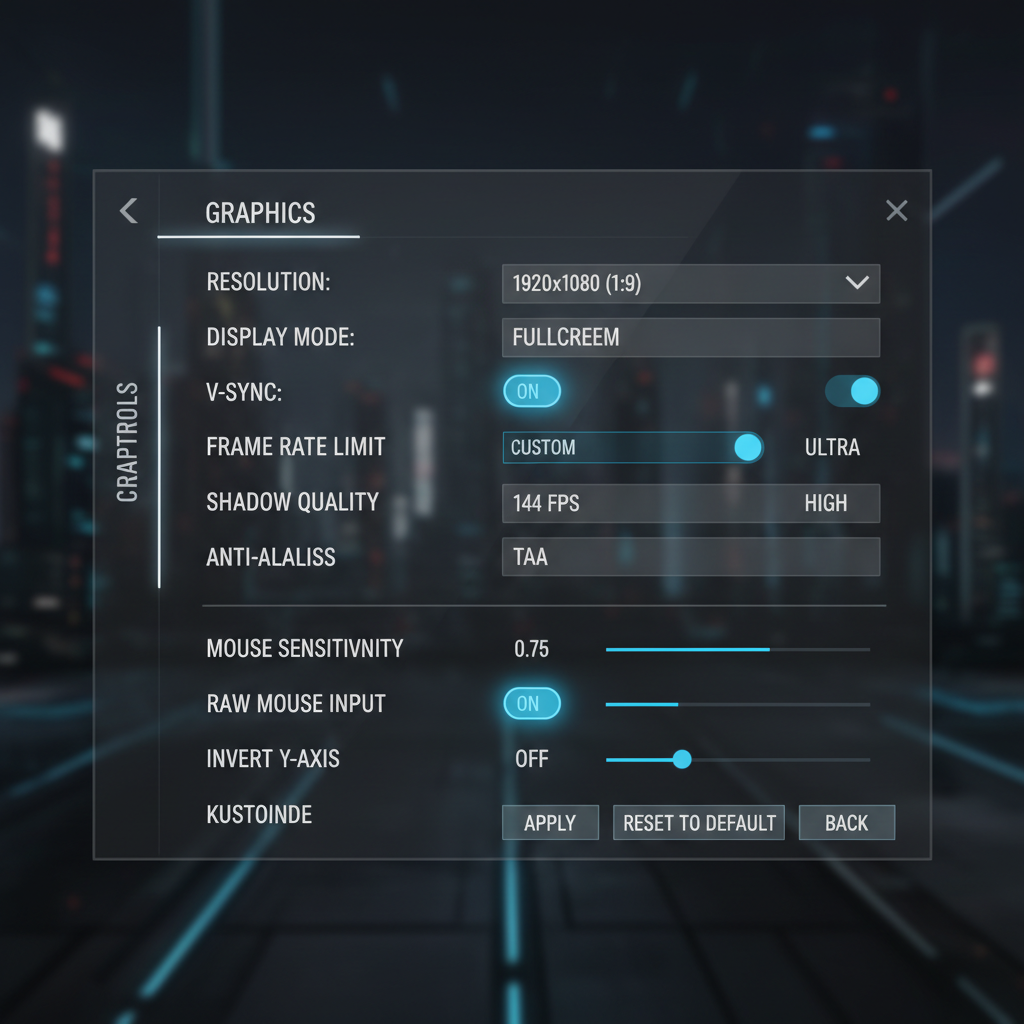
- If you feel consistent delay, try turning off V-Sync in-game first.
- If tearing is unbearable, prefer VRR (G-Sync/FreeSync) with a frame cap slightly below refresh rate, rather than classic V-Sync.
- For 144Hz, many players cap around 141 FPS; for 240Hz, around 237 FPS. Not magic numbers, just common practice to avoid hitting the ceiling where latency can rise.
According to NVIDIA, V-Sync can increase input latency because it waits for the display refresh, while G-SYNC is designed to reduce tearing with less latency impact compared to traditional V-Sync behavior.
2) Disable “Mouse Smoothing” and similar in-game filters
- Look for mouse smoothing, aim smoothing, camera smoothing, or raw input toggles.
- In most competitive shooters, turning smoothing off and using raw input on feels more direct.
This is one of those settings people forget exists, then spend an hour tweaking drivers for no reason.
Windows fixes: small toggles that often make a big difference
Windows can add its own “helpful” behavior. Sometimes it’s fine, sometimes it’s the whole problem.
Disable Enhance Pointer Precision (mouse acceleration)
Go to Windows mouse settings and turn off Enhance pointer precision. It’s acceleration, and it can feel like lag when your hand expects 1:1 movement.
According to Microsoft, Enhance pointer precision changes how pointer movement responds to mouse motion, which can affect consistency for precision aiming.
Check Optimizations for windowed games and fullscreen optimizations
- If you use borderless, try toggling Optimizations for windowed games on/off and test.
- If you use exclusive fullscreen, try disabling Fullscreen optimizations for that game’s executable and compare feel.
There isn’t one “correct” setting for every PC, this is a quick A/B test and keep what feels more responsive.
Turn off Xbox Game Bar capture if you don’t use it
If you never record clips, disabling background capture can reduce overhead and odd stutters that get mistaken for input lag.
Driver and hardware checks (without over-tweaking)
When the usual toggles don’t help, you’re often dealing with a driver scheduling issue, a bad USB path, or settings mismatch.
Mouse polling rate, DPI, and USB port choice
- Polling rate: 1000Hz is common, but if you get stutter on a borderline system, try 500Hz and see if motion steadies.
- DPI: extremely high DPI can amplify tiny sensor noise; many players land between 400–1600 DPI, then adjust in-game sensitivity.
- USB port: plug into a rear motherboard USB port, avoid hubs and front-panel extensions when troubleshooting.
If your mouse has a control app, keep it simple during testing: one DPI step, one polling rate, no angle snapping, no “smart” smoothing.
GPU driver settings that can add latency
- NVIDIA: test Low Latency Mode (Off vs On vs Ultra) per-game, don’t assume one choice wins everywhere.
- AMD: test Radeon Anti-Lag if available, and avoid stacking too many latency features at once.
Also check you’re actually running the monitor at its intended refresh rate in Windows display settings, it’s more common than people want to admit.
Overlays, capture tools, and background apps: the hidden culprits
If mouse lag only appears after you “set everything up” with overlays, chat, RGB tools, and recording, the simplest test is brutal but effective: turn them off and see what changes.
- Temporarily disable Discord overlay, Steam overlay, GeForce Experience overlay, MSI Afterburner OSD, and any capture software.
- Close browser tabs with heavy video playback on a second monitor, especially on older CPUs.
- Pause cloud sync tools during play if you notice periodic spikes.
Overlays are not “bad,” but when they hook into a particular game engine, the symptoms can look exactly like input latency.
Fix-by-symptom playbook (use this table)
If you want the quickest route to how to fix mouse lag in fullscreen games, match the feeling to a likely cause, then apply one change at a time.
| What you feel | Most likely cause | Best first fix to test |
|---|---|---|
| Consistent input delay | V-Sync buffering, frame queue | Disable V-Sync, cap FPS slightly below refresh |
| Jittery / uneven camera | Frame time spikes, background tasks | Disable overlays, lower a heavy setting (shadows), check CPU usage |
| Feels like acceleration/float | Mouse accel or smoothing | Turn off Enhance Pointer Precision, disable in-game smoothing, enable raw input |
| Only in fullscreen | Fullscreen optimization path, refresh mismatch | Toggle Fullscreen optimizations, confirm refresh rate in Windows |
| Only after updates | Driver regression, settings reset | Clean-install GPU driver or roll back one version, re-check in-game latency settings |
Practical step-by-step: a clean troubleshooting order (15 minutes)
When people get stuck, it’s usually because they changed ten things and can’t tell what helped. This order keeps your testing readable.
- Step 1: In-game, turn off V-Sync, turn off mouse smoothing, turn on raw input if available.
- Step 2: Confirm monitor refresh rate in Windows, then set a simple FPS cap.
- Step 3: Disable overlays and background capture, test one match.
- Step 4: Toggle fullscreen optimizations (one direction), test again.
- Step 5: If still bad, adjust polling rate (1000Hz to 500Hz) and move the mouse to a rear USB port.
Key point: change one variable, test, keep notes. This sounds slow, but it’s faster than guessing.
When to seek deeper help (and what to collect first)
If none of the above touches the problem, you may be looking at unusual USB issues, unstable overclocks, thermal throttling, or a game-specific engine bug. That’s where general advice stops being reliable.
- Grab basic info: GPU driver version, Windows version, monitor refresh rate, in-game display mode, and whether VRR is enabled.
- If possible, capture a short clip with an FPS and frame-time overlay, not for bragging rights, just to show pacing.
- If you suspect hardware trouble (random USB disconnects, devices dropping), consider asking a qualified technician, especially if you’re not comfortable changing BIOS settings.
According to Valve (Steam Support), verifying game files and testing without third-party software are common first steps when troubleshooting performance issues tied to specific titles.
Conclusion: what usually fixes it fastest
Most of the time, fixing mouse lag in fullscreen comes down to removing extra buffering and stabilizing frame pacing, not buying a new mouse. Start with V-Sync and smoothing, confirm refresh rate and an FPS cap, then strip overlays until the feeling snaps back to normal.
If you do one thing today, do this: pick one game, apply the table’s “best first fix,” then test for five minutes before touching anything else. That single habit saves hours.
FAQ
Why is my mouse fine on the desktop but laggy in fullscreen games?
Desktop input doesn’t go through the same rendering and presentation path. In fullscreen, V-Sync, buffering, and frame pacing can add delay that you never notice in Windows.
Does V-Sync always cause mouse lag?
Not always, but it often adds some latency because frames may wait for refresh. If you hate tearing, VRR plus a frame cap often feels snappier than classic V-Sync.
Is borderless window better than exclusive fullscreen for input lag?
It depends on Windows version and the game. Some titles feel better in exclusive fullscreen, others are fine in borderless with windowed optimizations. Treat it like an A/B test.
Can a high polling rate cause stutter?
It can on some systems, especially if CPU scheduling is tight or USB controllers behave oddly. If aiming feels “grainy,” testing 500Hz is a reasonable troubleshooting step.
What’s the difference between mouse lag and low FPS?
Low FPS is fewer updates per second, while mouse lag is delayed response. The tricky part is inconsistent frame time can mimic lag even when average FPS looks fine.
Do overlays like Discord or Steam really affect mouse input?
They can. Overlays hook into rendering, and some game engines react poorly, causing stutters or added latency. Disabling them briefly is a clean way to rule that out.
Should I reinstall GPU drivers to fix mouse lag in fullscreen games?
If the issue started after a driver update or you see weird behavior across multiple games, a clean install can help. If it’s only one game, start with in-game settings and overlays first.
If you’re still stuck after these tests, you might prefer a more “set-and-forget” approach: write down your current settings, then change only one category per session (game settings, Windows toggles, drivers) so you can pinpoint what actually fixed the input feel.