
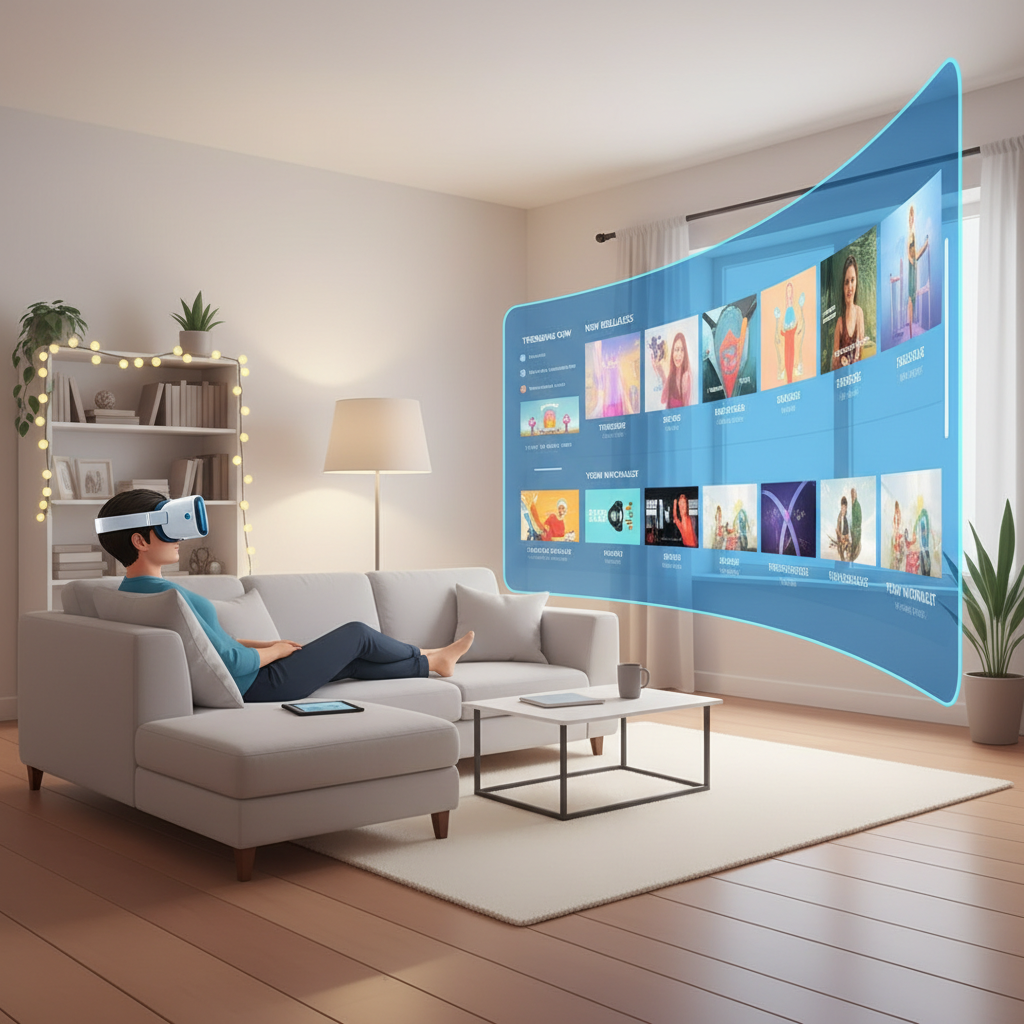
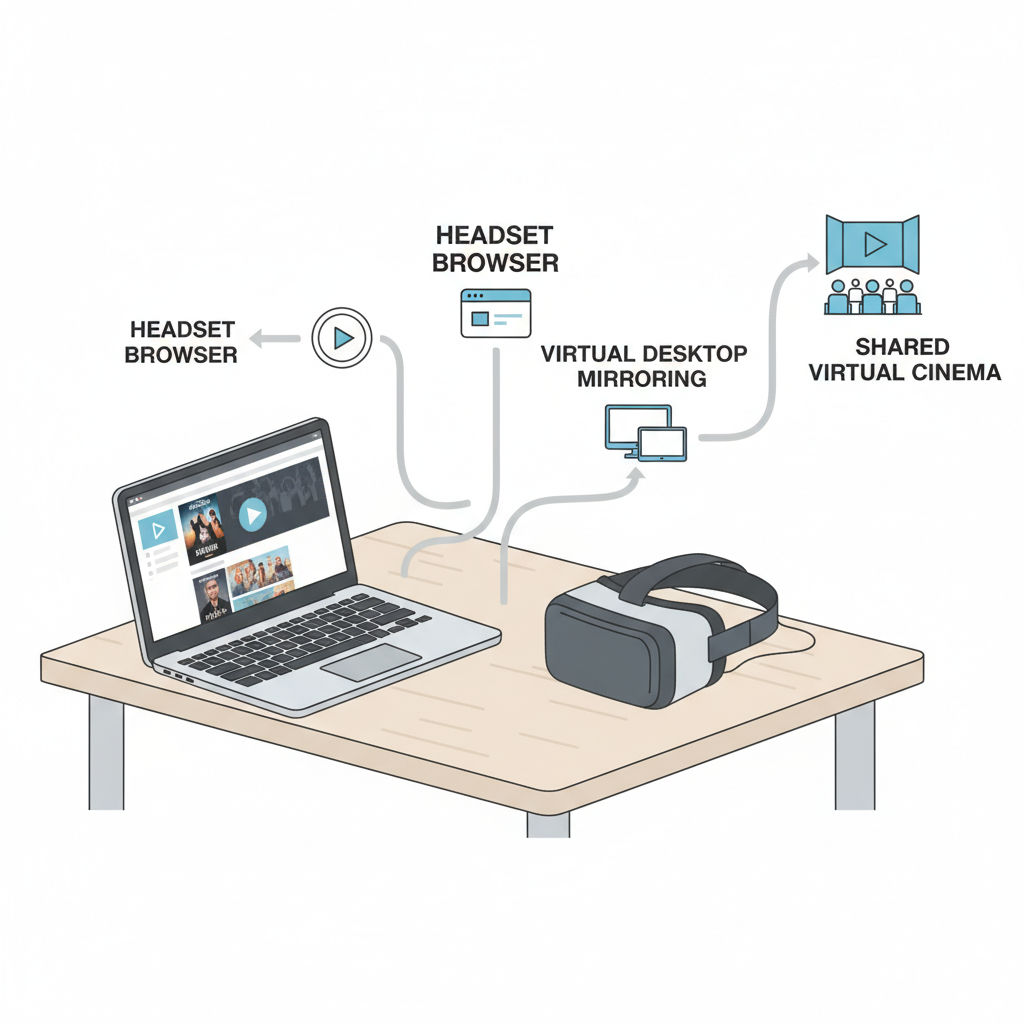
How to watch disney plus in vr usually comes down to one of three paths: a built-in headset browser, a “virtual theater” app that mirrors your PC, or a shared room app where you stream from a computer. The tricky part is that Disney+ support changes by device, and VR apps don’t always behave like a normal TV.
If you tried once and saw a black screen, low resolution, or an error about “unsupported browser,” you’re not alone. Disney+ uses DRM and device checks, and VR environments add another layer where some players simply can’t pass protected video correctly.
This guide walks through practical setups that typically work for U.S. users, how to pick the right method for your headset, and the fastest troubleshooting steps when Disney+ refuses to play. I’ll also call out the common “looks like it should work” dead ends, so you don’t waste an hour.
What you need before you start (and why it matters)
Before you chase settings, make sure the basics line up. In VR, “I can log in” doesn’t always mean “I can play video.” DRM support, browser versions, and network stability matter more than people expect.
- An active Disney+ subscription and access to your account email/password or SSO method.
- A stable Wi‑Fi connection, ideally 5 GHz or Wi‑Fi 6 for fewer drops in headsets.
- Headset type: standalone (Meta Quest, Pico), PC VR (Valve Index, Vive), or PS VR2.
- A plan for audio: built-in speakers work, but headphones often feel more “theater.”
According to Disney+ Help Center, Disney+ is only supported on specific browsers and devices, and unsupported environments may fail playback even if login succeeds. In VR, you’re often using a browser wrapper or a virtual desktop layer, so compatibility can vary by update.
Pick your best method: browser vs. virtual desktop vs. shared room
There isn’t one universal “Disney+ VR app” that works everywhere. The cleanest experience depends on your headset and how comfortable you are using a PC.
Quick comparison table
| Method | Best for | Typical pros | Common gotchas |
|---|---|---|---|
| Headset browser | Standalone headsets | No PC needed, fastest setup | DRM errors, limited resolution, controls can be finicky |
| Virtual Desktop / PC mirroring | Highest quality, flexibility | More reliable playback, better video options | Needs a PC, network quality matters |
| Shared room apps (virtual cinema) | “Watch together” vibe | Social viewing, theater environments | Streaming rights/DRM may block in-app playback, extra setup |
If you want “least hassle,” start with the headset browser. If you care about consistent playback and fewer DRM surprises, PC mirroring tends to be the most dependable route.
How to watch Disney Plus in VR using a headset browser (standalone)
This is the simplest path and the one many people try first. On a Meta Quest, that usually means the built-in Meta Browser. Other headsets have similar browsers, but support differs.
Step-by-step
- Open your headset’s browser.
- Go to disneyplus.com, sign in.
- Start playback, then switch to full screen (if available).
- If the browser offers a “Desktop site” toggle, try both modes.
Reality check: if you get audio with a black screen, or an “unsupported browser” message, that’s usually DRM or browser support, not something you “fix” with random toggles. At that point, jump to the PC mirroring method or the troubleshooting section.
How to watch Disney Plus in VR with PC mirroring (often the most reliable)
If you keep hitting playback issues, PC mirroring is the workaround that “just works” in a lot of homes, because the actual playback happens in a fully supported desktop browser. Your headset is basically a big virtual monitor.
What to use
- Virtual Desktop (popular for Quest users)
- SteamVR + a desktop view (varies by setup)
- Air Link / Link Cable for Meta Quest (wired can be steadier)
Step-by-step (generic, works across many setups)
- On your PC, open a supported browser (Chrome, Edge, Safari on macOS). Update it if needed.
- Sign in to Disney+ on the PC and confirm playback works on the monitor first.
- Connect your headset using your mirroring method (wireless or cable).
- In VR, open the mirrored desktop, enlarge the “screen,” and enable full screen playback.
According to Google’s Widevine documentation (the DRM system used by many streaming services), protected playback depends on the platform and device security level. That’s why a normal desktop browser may succeed where a VR app browser fails.
Self-check: which situation are you in?
This quick list saves time because different symptoms point to different causes. Read it like a decision tree, not a checklist you must complete.
- Login works, playback fails immediately: often DRM or unsupported browser layer.
- Audio plays, video is black: commonly DRM-protected video not rendering in that app.
- Video plays but looks soft: browser resolution limit, headset scaling, or Wi‑Fi congestion.
- Stutters every few seconds: network latency, headset thermal throttling, background downloads.
- Error code appears: copy it and search Disney+ Help Center; codes are more useful than guesswork.
Troubleshooting: fixes that actually move the needle
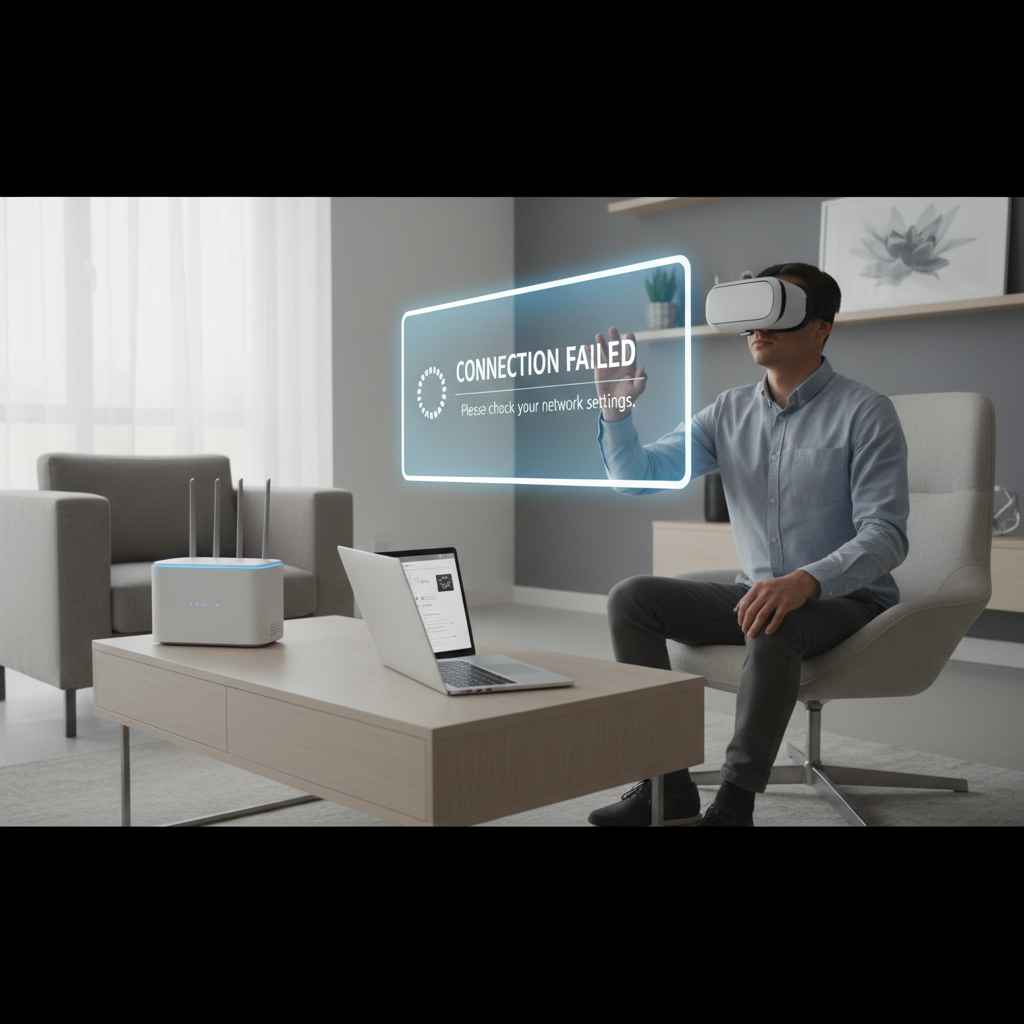
When Disney+ fails in VR, people often spam random settings. The better approach is to test one variable at a time, starting with what most commonly breaks protected streaming.
1) Update the browser or switch browsers
- On PC, try Chrome or Microsoft Edge if one fails.
- Disable unusual extensions (ad blockers, privacy tools) just for the Disney+ tab.
2) Turn off screen recording and casting (when possible)
Some protected streams refuse playback if the system thinks the screen might be captured. If you’re casting your headset view to a TV/phone, test with casting off.
3) Fix network quality, not just “speed”
- Move closer to the router or use a dedicated 5 GHz network for VR.
- Pause other large downloads and cloud backups.
- If you’re mirroring from PC, try wired Ethernet for the PC.
4) Adjust video quality expectations in VR
VR “big screen” makes compression artifacts easier to spot. If the picture looks mushy, it may be normal for that method. Many users get a sharper result mirroring a PC browser than using a headset browser.
Common mistakes and dead ends (worth avoiding)
- Assuming any VR browser equals a desktop browser: they’re often different under the hood, especially for DRM.
- Chasing “VR Disney+ apps” that aren’t official: compatibility can be temporary, and login safety matters.
- Using unofficial screen capture tools: besides being risky, it can trigger playback blocks.
- Mixing up “watch together” with “stream inside the app”: many social apps can show your desktop, but not all can play DRM video directly inside their own player.
If you care about account security, stick to Disney+ in a supported browser and reputable mirroring tools, and avoid entering credentials into apps you don’t trust.
When to get more help (and what to ask)
If you still can’t get it working after trying PC playback plus mirroring, it’s likely a compatibility limit or a temporary service-side issue, not something you can brute-force.
- Contact Disney+ support if you see a repeatable error code, billing issues, or account lockouts.
- Check your headset community forums if an update recently broke browser playback; these breakages tend to appear in waves.
- Consider professional IT help if you’re configuring routers, mesh networks, or advanced Wi‑Fi settings and feel unsure, since misconfiguration can affect home security.
Conclusion: the fastest path to a good VR Disney+ experience
If your goal is simply to start watching tonight, try the headset browser first, and if playback fails or the picture looks rough, switch to PC mirroring. In real use, that second option avoids many DRM-related headaches and usually gives a cleaner “virtual theater” feel.
Key takeaways: keep your browser updated, don’t ignore DRM limitations, and treat Wi‑Fi stability as part of the setup, not an afterthought. Pick one method, test it end to end, then tweak quality and comfort.
If you want a quick next step, open Disney+ on your computer to confirm it plays normally, then mirror that screen into your headset and go full screen.
Key points at a glance
- Best reliability: play Disney+ on a PC browser and mirror into VR.
- Best convenience: headset browser, when DRM support cooperates.
- Most common failure: black screen with audio due to protected video.
FAQ
- Can I watch Disney+ in VR on Meta Quest without a PC?
Often yes via the headset browser, but success depends on current browser/DRM compatibility. If you hit a black screen, PC mirroring tends to be the fallback that works more consistently. - Why does Disney+ show a black screen in VR?
In many cases it’s DRM-protected playback not rendering inside that VR app or browser layer. Audio can still play, which makes it confusing, but it’s a known symptom of protected video failing. - Is there an official Disney+ VR app?
Availability changes, and many headsets don’t have a dedicated official VR app. The most dependable approach is usually Disney+ in a supported desktop browser, viewed through VR mirroring. - What’s the best browser for Disney+ when mirroring into VR?
Chrome or Microsoft Edge are common choices on Windows. The bigger point is staying on a supported, updated browser and testing playback on the PC before going into VR. - How do I improve video quality when watching Disney+ in VR?
Use PC mirroring, ensure strong Wi‑Fi (or wired PC Ethernet), and watch in full screen at a large but reasonable virtual screen size. Over-scaling can make compression artifacts feel worse. - Can I watch Disney+ with friends in a VR room?
Sometimes, but it depends on whether the app is showing a mirrored desktop (more likely) or trying to play the stream inside its own player (often blocked). Keep an eye on Disney+ terms and your app’s features. - Does casting my headset to a phone or TV affect Disney+ playback?
It can. Some protected streams may refuse playback if the system detects capture/casting. If you’re troubleshooting, test with casting off.
If you’re trying to get a “movie night” setup without spending hours troubleshooting, the simplest plan is a supported PC browser plus a trusted VR desktop mirroring app, it’s not flashy, but it’s usually the least frustrating.