
how to fix controller not working on vr usually comes down to a short list of issues: power, pairing, tracking, or software conflicts, and you can narrow it down in minutes if you test in the right order.
If your controller won’t connect, won’t track, or buttons stop responding mid-session, it feels like the headset is “broken” even when it isn’t. The good news is most controller problems are recoverable without buying new hardware, but the steps vary a lot by headset and by whether you use PC VR.
This guide focuses on practical checks that work across Meta Quest, PlayStation VR2, and PC VR setups like SteamVR. I’ll call out when you should stop troubleshooting and switch to support, because chasing the wrong fix can waste hours.
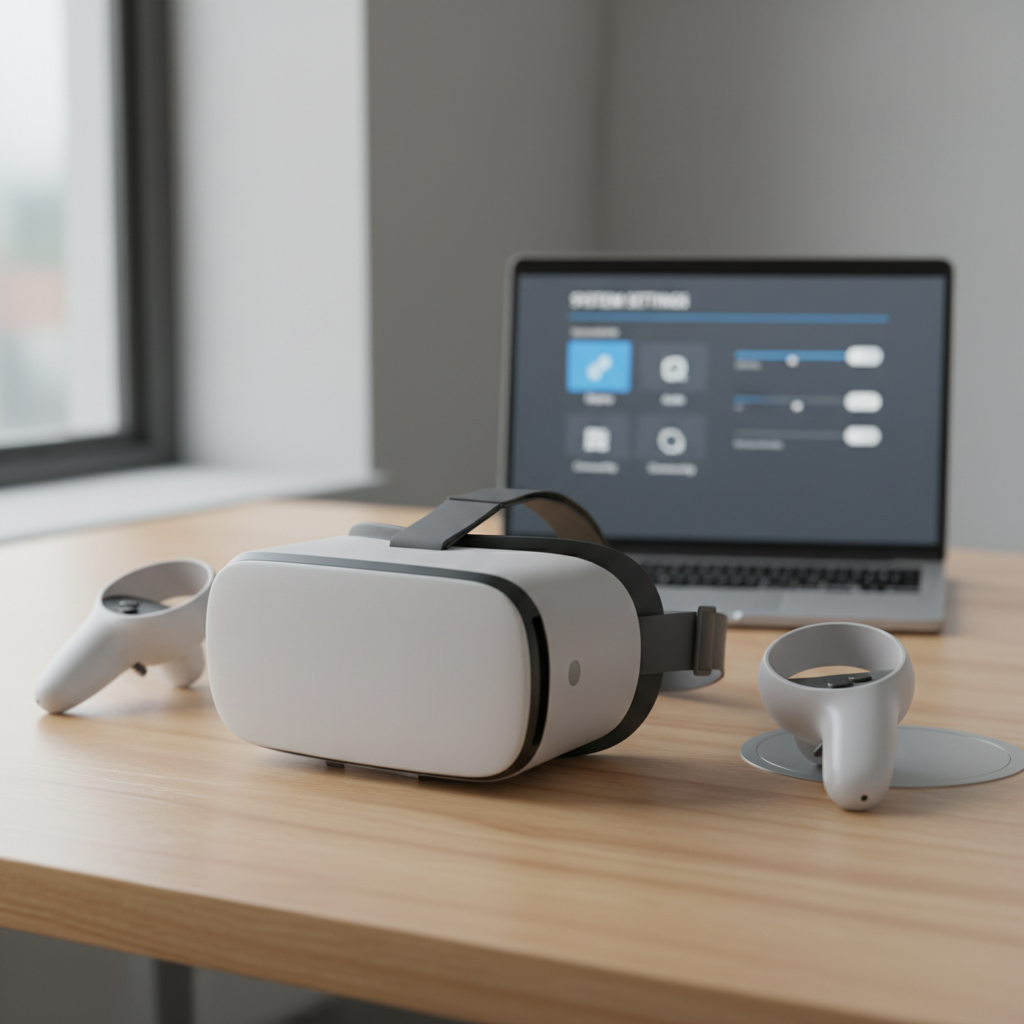
Quick diagnosis: what “not working” actually means
Before you change settings, pin down the symptom. “Not working” can mean different failure points, and the fix depends on which one you hit.
- No power: LED never turns on, no vibration on wake.
- Not paired: controller powers on but never connects to the headset/console/PC.
- Tracking lost: buttons work, but the controller floats, jitters, or disappears.
- Input failure: tracking looks fine, but triggers/buttons/thumbstick don’t register.
- Only broken in one app/game: works in menus but not in a specific title.
Write down which of those matches your case. If you’re trying to learn how to fix controller not working on vr fast, this saves you from random resets that don’t target the root cause.
Most common causes (and why they happen)
Controller problems typically come from a few real-world conditions, not mysterious “VR gremlins.”
- Battery issues: low charge, bad rechargeables, or corroded contacts. Power can look “fine” but drop under load.
- Wireless interference: crowded 2.4 GHz Wi‑Fi, Bluetooth devices, USB 3.0 noise near dongles, or a console cabinet blocking signal.
- Tracking environment: dim lighting, direct sunlight, reflective mirrors/TVs, or blank walls that give inside-out tracking little texture.
- Software/firmware mismatch: controller firmware stuck, headset update incomplete, SteamVR bindings corrupted.
- Device memory/state glitches: stuck pairing records, background services hung, or a controller that needs a hard reset.
According to Meta Support, controller tracking and pairing can be affected by lighting conditions and controller battery level, so basic environment and power checks are not “beginner steps,” they’re often the actual fix.
Self-check checklist (2 minutes, no tools)
Run this quick pass before deeper steps. Many cases of how to fix controller not working on vr end right here.
- Swap in fresh brand-name batteries (or fully charge, for rechargeable models). Avoid “almost full” rechargeables for testing.
- Remove and re-seat the battery for 10 seconds, check for rust or white residue on contacts.
- Reboot the headset/console/PC (full restart, not sleep).
- Test in the headset’s home/menu area first, not inside a game.
- Change rooms: brighter, even lighting, no sunlight beams, fewer mirrors.
- Turn off nearby Bluetooth accessories temporarily (controllers, earbuds) and pause large downloads on Wi‑Fi.
If one controller works and the other doesn’t, your goal is to isolate whether it’s the controller hardware, or the pairing/tracking state for that specific controller.
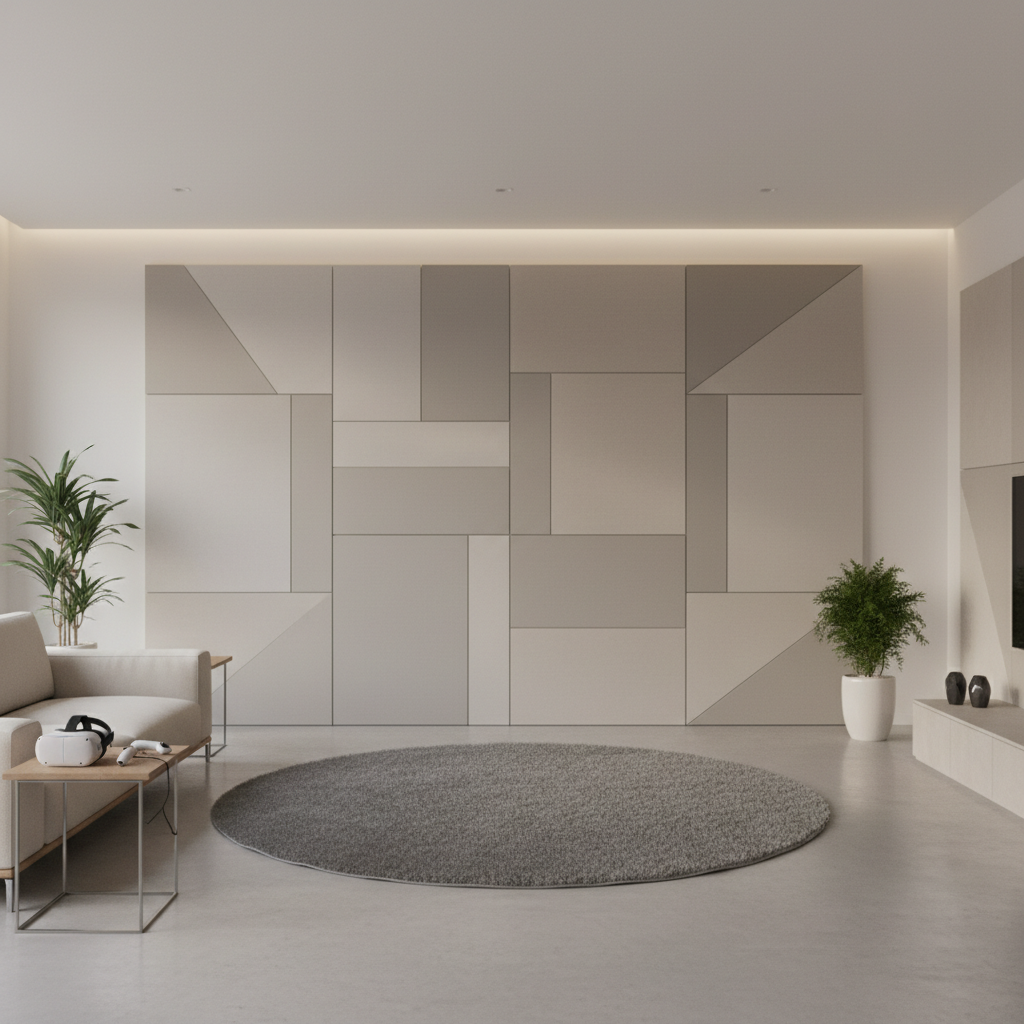
Fixes by symptom (do these in order)
1) Controller won’t turn on
This is almost always power or contact related.
- Use a new set of alkaline batteries (Quest Touch-style controllers) to rule out voltage sag.
- Inspect battery terminals. If you see corrosion, stop and clean carefully with isopropyl alcohol on a swab. If corrosion is heavy, consider support rather than scraping aggressively.
- Confirm you’re using the correct battery orientation. Sounds obvious, but it’s common after quick swaps.
If it still shows no LED or vibration, the controller may have internal damage. At that point, skip ahead to the “when to contact support” section.
2) Controller turns on but won’t pair/connect
Pairing failures often come from stale pairing records or an incomplete update.
- Unpair and re-pair the controller in your headset/console settings (Quest/PS VR2) or in SteamVR device settings (PC VR).
- Restart the host device after unpairing, then pair again.
- On PC VR, plug wireless dongles into a USB 2.0 extension cable and move them away from the PC case. USB 3.0 ports and metal chassis can add interference.
- Update firmware: keep the controller near the headset during updates, and don’t let the headset sleep mid-process.
According to Valve’s Steam Support resources, input issues in SteamVR can stem from controller bindings and device detection problems, so re-detecting devices and resetting bindings is a legitimate step when the controller is fine in hardware terms.
3) Controller connects but tracking is jittery or drifts
Tracking problems often look like “controller not working,” but buttons still click and register.
- Increase room lighting to a steady, diffuse level. Avoid direct sunlight on the sensors.
- Cover or move mirrors, glossy TVs, and shiny posters. Reflections can confuse inside-out tracking.
- Clean controller tracking surfaces (rings or sensor areas) with a dry microfiber cloth.
- Re-run guardian/room setup so the headset rebuilds its environment map.
- For lighthouse-based tracking (Index/Vive), check base station visibility and make sure nothing blocks line-of-sight.
One more detail people miss: if you’re standing too close to blank walls, tracking can degrade because the cameras see “nothing” to lock onto. Adding some texture in view often helps.
4) Buttons/triggers stop responding, but tracking looks fine
This is where software, bindings, and debris around moving parts show up.
- Test controller input in the system UI or a controller test screen (if available) to rule out game-specific mapping.
- On SteamVR, reset controller bindings to default for the game, then test.
- If a trigger feels physically sticky, don’t force it. Light compressed air around seams can help, but avoid liquids unless the manufacturer specifically recommends it.
- Update the game itself. Some titles ship broken bindings after patches and fix them later.
If you’re still researching how to fix controller not working on vr and it only fails in one game, treat it as a bindings/config issue first, not a hardware failure.
Fixes by platform (Quest, PS VR2, PC VR)
Platform steps differ mainly around pairing and software layers.
| Platform | Most effective “first fixes” | Typical culprit when it’s intermittent |
|---|---|---|
| Meta Quest (standalone) | Fresh batteries, unpair/re-pair, headset restart, update firmware | Lighting/reflections, low battery under load, controller firmware stalled |
| PlayStation VR2 | USB charging check, re-sync controllers, console restart, update PS5 system software | Low charge, system update pending, environmental tracking conditions |
| PC VR (SteamVR/OpenXR) | Restart SteamVR, reset bindings, re-detect devices, move dongles away via USB extension | USB interference, Bluetooth conflicts, per-game bindings corruption |
On PC, keep an eye on what runtime you’re using. OpenXR settings can route input through different layers, and mismatches sometimes appear as a “dead controller” inside one app only.
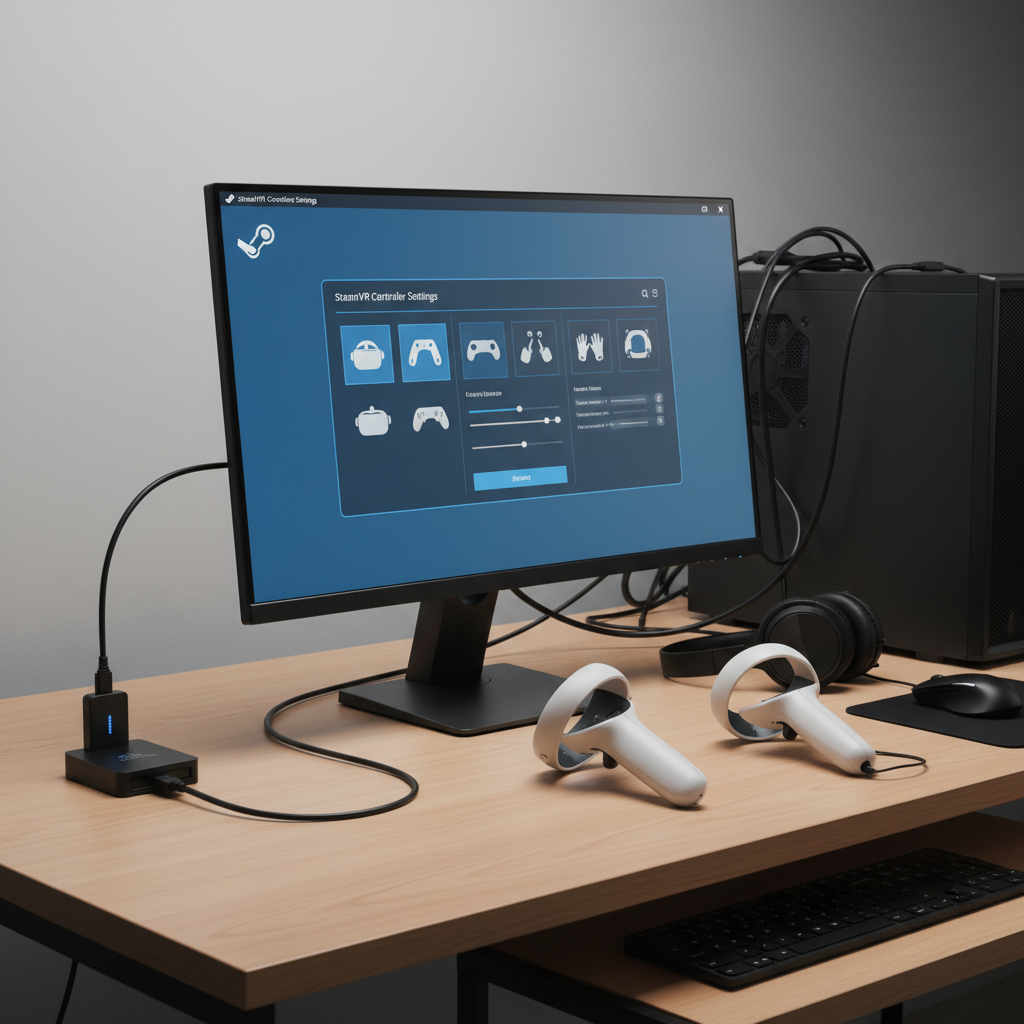
Hands-on troubleshooting flow (printable, no guesswork)
If you want a clean workflow to follow every time, use this sequence. It’s designed to answer “is it power, pairing, tracking, or software” as quickly as possible.
- Step 1: Verify power (fresh battery/charge) and restart host device.
- Step 2: Test in system home/menu. If it fails here, it’s not a single-game issue.
- Step 3: Re-pair/re-sync. If pairing fails repeatedly, focus on wireless interference and firmware updates.
- Step 4: Fix tracking environment (lighting, reflections, room setup). Confirm stability for 2–3 minutes.
- Step 5: Only now troubleshoot per-game settings (SteamVR bindings, in-game controller mappings, reinstall that title).
Key point: when people ask how to fix controller not working on vr, they often jump to factory resets. In reality, resets help only after you’ve isolated software state as the problem.
Mistakes that waste time (and what to do instead)
- Mistake: Changing five things at once. Instead: change one variable, then retest in the home menu.
- Mistake: Assuming “battery shows 50%” means it’s fine. Instead: test with a known-good new set.
- Mistake: Troubleshooting inside a buggy game. Instead: prove the controller works in the system UI first.
- Mistake: Ignoring the room. Instead: treat lighting and reflections as first-class inputs to tracking.
- Mistake: Forcing sticky triggers with WD-40 or liquids. Instead: keep it dry; if mechanical, consider support.
Also, if you feel motion sick or dizzy while testing tracking issues, take breaks. Comfort matters, and persistent symptoms might warrant pausing VR use and, if needed, consulting a medical professional.
When to stop troubleshooting and contact support
Sometimes the “fix” is admitting it’s likely hardware. Reach out to the manufacturer or retailer when you hit these signals.
- Controller shows no power with verified batteries/charge and clean contacts.
- Repeated pairing failures across multiple host devices (for example, it won’t pair to a friend’s headset either).
- Visible damage: cracked housing, swollen battery compartment, liquid exposure.
- Tracking drops even in a good environment after firmware updates and re-pairing.
According to Sony PlayStation Support and Meta Support documentation, warranty and repair options depend on purchase channel and region, so it’s worth checking your device’s official support page before buying replacement controllers.
Conclusion: get back to stable VR input with fewer resets
Most controller issues come from power, pairing state, or tracking conditions, and you can usually solve them with a controlled checklist rather than a factory reset marathon.
If you want one practical next move, do this: test with fresh batteries/charge, reboot, then re-pair, and only after that spend time on lighting and reflections. If the controller still shows no life or fails across devices, stop and move to official support.
FAQ
- How do I fix controller not working on VR if it only fails in one game?
Start by testing in the headset home or system menu. If it works there, reset that game’s controller bindings (SteamVR) or check in-game control settings, and update or reinstall the title before touching hardware settings. - Why does my VR controller connect but not track?
That usually points to environmental tracking. Try brighter, even lighting, remove reflections from mirrors/TVs, and re-run room setup. Tracking can look “random” when the cameras don’t have stable visual features. - Do rechargeable batteries cause VR controllers to disconnect?
They can in some setups, especially if voltage drops under load. For troubleshooting, use new alkaline batteries or a fully charged official battery pack to rule that out. - What should I do if my Quest controller keeps unpairing?
Unpair/re-pair, restart the headset, and make sure updates completed. If it happens in a busy wireless environment, reducing nearby Bluetooth devices and Wi‑Fi congestion can help. - How do I fix a VR controller trigger that feels stuck?
Don’t force it. Light compressed air around the seam may help if it’s debris. If it’s physically grinding or not returning, support or repair is safer than using liquids or lubricants. - On PC VR, why does one controller work and the other doesn’t?
Often it’s a pairing/dongle issue or bindings mismatch. Re-detect devices in SteamVR, reset bindings for the app, and move dongles away from the PC case using a USB extension to reduce interference. - Is a factory reset necessary to fix VR controller problems?
Sometimes, but it’s rarely the first best step. It makes more sense after power checks, re-pairing, firmware updates, and environment fixes fail, especially when problems appear across multiple apps.
If you’re stuck after these steps, a “clean-room” test can save time: try the controller in the system menu in a different room with fresh batteries, then decide whether to pursue software fixes or open a support ticket with clear notes on what you already tested.