
How to play with friends cross platform usually comes down to three things people overlook: the game actually supports cross-play, everyone is on the same game version, and you’re using the right friend/invite system for that title.
If you’ve ever said “I see you online but I can’t invite you,” you’re not alone, cross-platform play is convenient when it works and oddly picky when one setting, account link, or privacy option blocks the whole party.
This guide walks through a practical, game-agnostic checklist, plus a few common platform-specific gotchas, so you can spend less time in menus and more time in matches.

Start here: confirm the game truly supports cross-play
Not every “multiplayer” game supports cross-platform play, and some only support it for certain modes, regions, or generations. One title might allow PC + Xbox but not PlayStation, another might support cross-play but not cross-progression.
When you’re unsure, skip rumor threads and go straight to official sources. According to Xbox Support and PlayStation Support, cross-play availability is determined by the game publisher, not the console maker, so the most reliable answer is typically the game’s own support page or patch notes.
Quick cross-play reality check
- Game mode matters: ranked or competitive playlists sometimes restrict cross-play.
- Generation matters: PS4 vs PS5 or Xbox One vs Series X|S versions can be treated as different SKUs.
- PC storefront matters: Steam vs Epic vs Microsoft Store builds may not always match the same network.
The usual requirement: you need the game’s account system, not just your console friends list
A lot of people get stuck because they add friends on Xbox Live or PSN and expect that to carry across. In many cross-play games, invites run through a publisher account system such as Epic, Activision, EA, Ubisoft, Microsoft account linking, or an in-game ID.
So the practical move is simple: find your in-game display ID, then add your friend using that same system inside the game’s social menu. If there’s an account-link page, do it early, not five minutes before the squad wants to queue.

Cross-play setup checklist (works for most games)
If you want the fastest path, run this checklist in order. It prevents the classic loop where two people change different settings and nothing improves.
- Update the game on every platform, then fully restart it (not just suspend/resume).
- Enable cross-play in the game settings (often under Gameplay, Online, or Account).
- Confirm cross-play is enabled on the platform if that platform has its own permission layer.
- Link the correct accounts (publisher account ↔ console/PC account).
- Add friends using the in-game ID, then accept requests on both sides.
- Match regions and party privacy (Open/Friends-only/Invite-only can block joining).
- Test with a private match to verify joining works before you chase matchmaking issues.
Small but important: if a game offers “cross-play: on” and “cross-play communication: on,” you may need both if your goal includes voice chat, not only matchmaking.
Common problems and what they usually mean
Most cross-platform issues cluster into a few predictable buckets. Here’s a quick mapping you can use to diagnose what’s happening before you start reinstalling.
Troubleshooting table
| Symptom | Likely cause | What to try |
|---|---|---|
| Friend can’t find your name/ID | Wrong ID system or privacy settings | Use the game’s friend code/ID, check “who can find me” and cross-play toggles |
| Invite sent, never received | Cross-play disabled on one side, or party privacy | Enable cross-play, set party to Invite-only temporarily, restart the game |
| “Version mismatch” or can’t join session | Different patch versions or different game editions | Update everyone, verify you’re on the same edition/build (e.g., next-gen vs last-gen) |
| Can join party, but no voice chat | Cross-platform voice not enabled, or NAT/permissions | Enable cross-platform comms, check platform voice permissions, try in-game voice vs Discord |
| High lag only when playing cross-platform | Server region mismatch or routing issues | Align region, pick closest server, use wired connection if possible |
Platform-specific settings that quietly block cross-platform play
This is where people lose patience, because everything looks “fine” in-game, but the platform layer still blocks it. You don’t always need to change anything, but it’s worth knowing where the traps are.
Xbox (privacy and cross-network permissions)
On Xbox, cross-network play can be limited by privacy settings, especially on child/teen accounts. According to Xbox Support, multiplayer and cross-network permissions can be managed in account privacy and online safety settings, and they may override in-game toggles.
PlayStation (communications and multiplayer permissions)
On PlayStation, the most common blockers are account privacy and communication permissions. According to PlayStation Support, parental controls and privacy settings can limit online play and messaging, which can break invites even if the game supports cross-play.
Nintendo Switch (account linking and friend systems)
Switch cross-play titles often depend heavily on the publisher account or an in-game friend code. If someone relies only on Switch friends, it can feel like the game “doesn’t work,” when it’s really just using a separate network layer.
PC (storefront differences and overlay conflicts)
On PC, make sure you’re launching the same ecosystem build as your friends expect. Also, overlays and background apps can interfere with invites in some games, if invites rely on an overlay pop-up, test by temporarily disabling extra overlays.
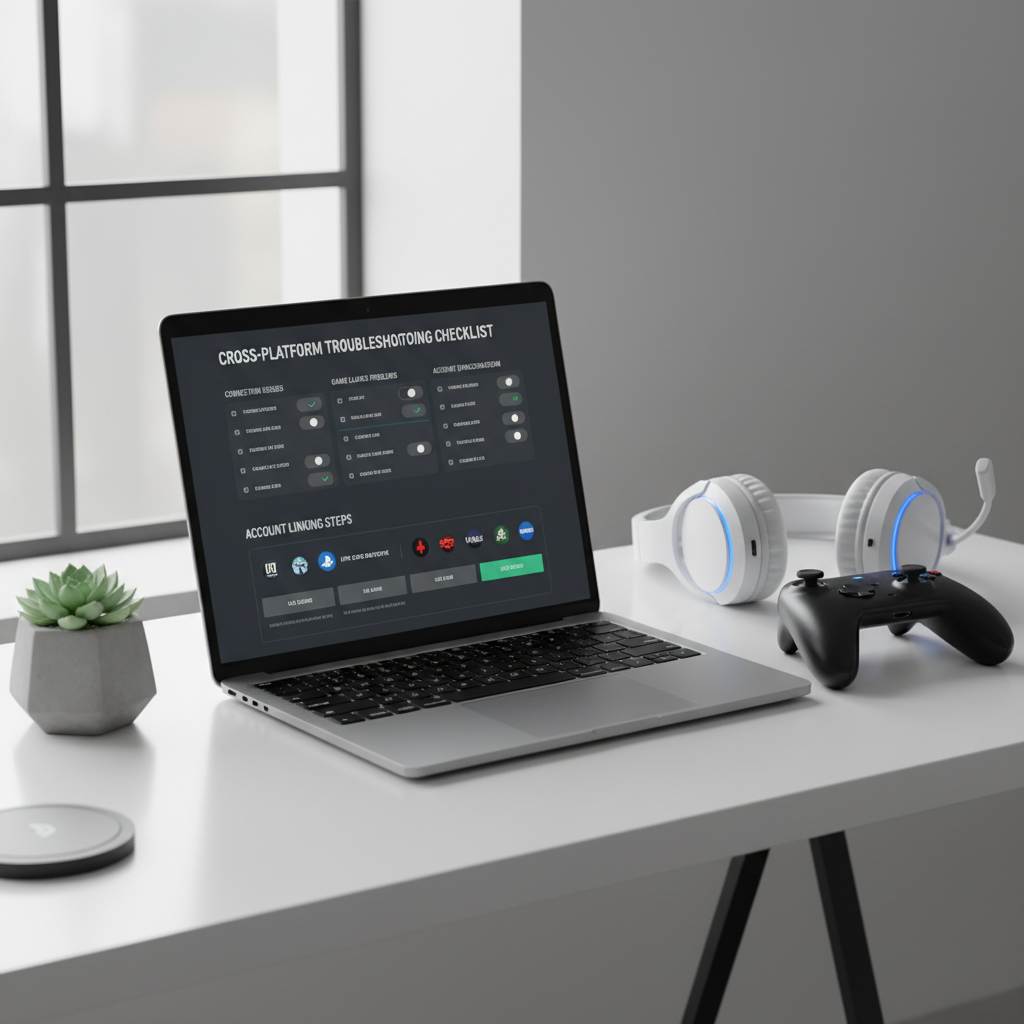
Practical step-by-step: getting a cross-platform party working in 10 minutes
If you want a simple playbook, this sequence works in many cases, even when you don’t know which setting is broken.
- Pick one person as host and have everyone close the game fully, then reopen.
- Verify cross-play is enabled in the game settings on every account.
- Link accounts (publisher account + platform account), then relaunch if prompted.
- Add using the in-game ID, not platform-only friends lists.
- Accept the request on the receiver’s side, then confirm they appear as “Online/In Lobby.”
- Create a private lobby and invite everyone, this removes matchmaking as a variable.
- Only after the lobby works, go into matchmaking or the public playlist.
If the private lobby fails, you likely have a permissions, version, or network-type issue. If the private lobby works but matchmaking fails, that’s often a playlist restriction or region mismatch.
Key points people miss (and waste time on)
- Cross-play isn’t always cross-progression: your skins and saves may not move unless the publisher supports it.
- “Same console family” doesn’t equal “same version”: next-gen and last-gen builds can be split.
- NAT and router issues still matter: especially for party chat or peer connections, even when matches are server-hosted.
- Blocked players stay blocked across ecosystems: if you blocked someone years ago, invites may silently fail.
Also, if you’re trying to figure out how to play with friends cross platform in a competitive shooter, check whether the game forces input pools or offers “console-only” matchmaking. Some games let you party together but change matchmaking rules when a PC player joins.
When to escalate: support tickets, ISP checks, and account recovery
Sometimes you do everything “right” and it still won’t connect. Escalate when the problem repeats across multiple games or multiple friends, because that points to an account or network baseline issue.
- Contact the game publisher support if your linked accounts look correct but invites fail consistently.
- Check account status if you suspect enforcement actions, compromised accounts, or age restrictions.
- Talk to your ISP or a network professional if you see persistent strict NAT or frequent disconnects across many titles, this varies by home network setup.
According to FTC guidance on account security, using unique passwords and enabling multi-factor authentication can help protect gaming accounts from takeover attempts, which can also cause strange login and linking behavior.
Conclusion: make cross-play boring again
If you keep the basics straight, same game build, cross-play enabled, correct in-game ID, and sane privacy settings, how to play with friends cross platform stops being a mystery and becomes a quick routine you can repeat for any title.
Your next move: run the checklist once with a private lobby test, then only tweak platform privacy settings if invites still fail, it saves time and avoids random setting changes that create new problems.