
how to fix game not using dedicated gpu usually comes down to one thing: Windows or your driver is choosing the power-saving iGPU instead of your NVIDIA/AMD card, so your game runs with low FPS, stutters, or shows “GPU 0” activity while the dGPU sits idle.
It’s worth fixing properly because the “wrong GPU” problem often masks other issues too, like laptop power limits, outdated drivers, or a game picking the wrong render device after an update. If you only flip one setting, it might work today and fail again after the next patch or driver install.
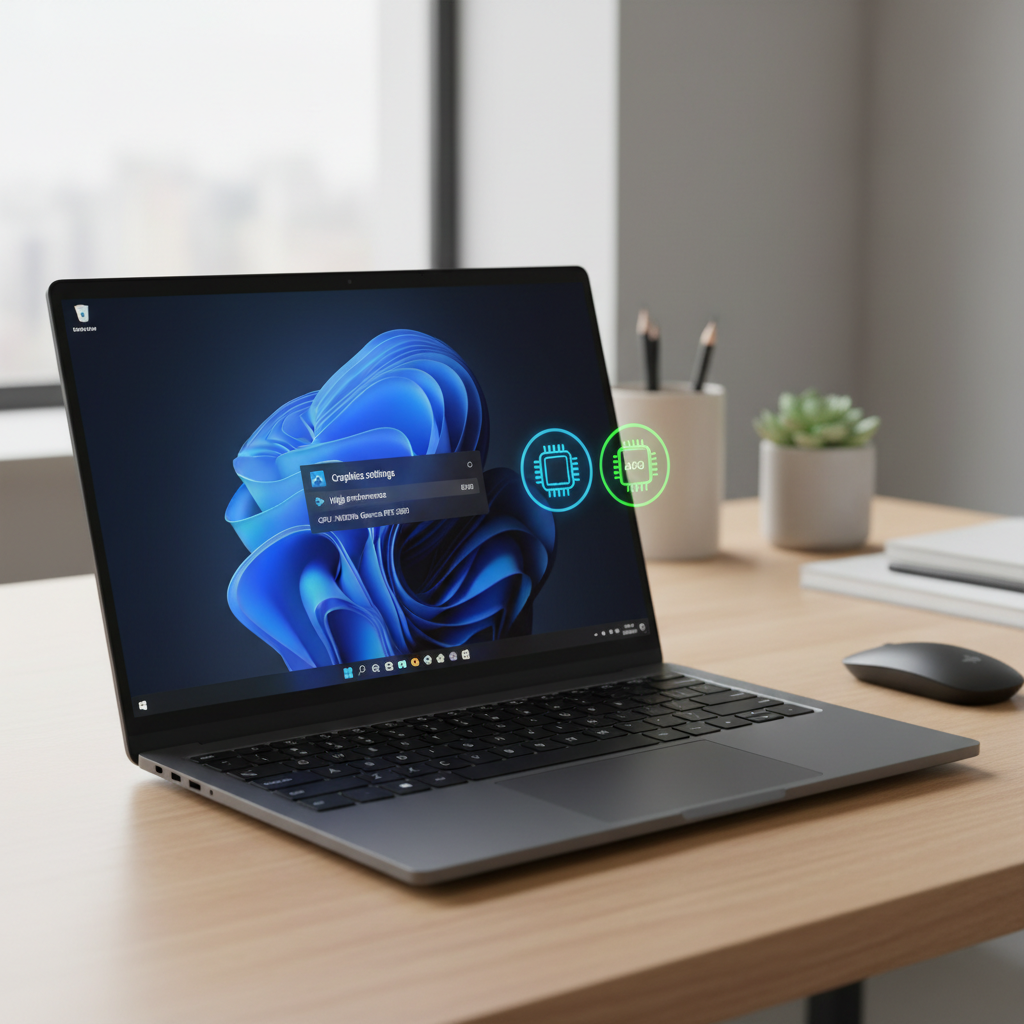
Below is a practical path: confirm what’s happening, apply the right fix for your setup, then lock it in so the game keeps using the dedicated GPU. I’ll also call out the common traps, because a lot of “fixes” look right but do nothing.
Start by confirming which GPU the game actually uses
Before changing settings, verify the symptom. Guessing wastes time, especially on laptops where power modes can override your choices.
Quick checks (Windows 10/11)
- Task Manager: Open Task Manager → Processes → right-click header → enable GPU and GPU Engine. Launch the game and look for “GPU 0/1” and the engine label.
- Performance tab: Task Manager → Performance shows GPU graphs. Many systems list iGPU as GPU 0 and dGPU as GPU 1, but it varies.
- In-game overlay: NVIDIA/AMD overlays or tools like MSI Afterburner can show which GPU loads up.
If the game uses the iGPU, you’ll often see high iGPU usage with low dGPU usage, plus lower-than-expected FPS even at modest settings.
Why games pick the integrated GPU (real-world causes)
When people ask how to fix game not using dedicated gpu, they usually assume it’s “one toggle.” In practice, there are a handful of repeat offenders, and the right fix depends on which one applies.
- Windows per-app graphics preference: Windows may assign the game to “Power saving.”
- Driver control panel override: NVIDIA Control Panel / AMD Adrenalin may disagree with Windows, or a global setting may be forcing a mode.
- Laptop muxless behavior: Many laptops route display through the iGPU, and the dGPU renders only when allowed by power policy or profiles.
- Wrong executable selected: Launchers (Steam/Epic/Battle.net) and anti-cheat wrappers can mean you set the GPU for the launcher, not the game EXE.
- External display wiring: Some HDMI/USB-C ports are wired to iGPU on certain models; others go direct to the dGPU.
- Power mode limits: On battery, Windows and OEM utilities may block dGPU usage or cap it hard.
- Driver or game update regression: A clean reinstall or profile reset can flip preferences back.
Fast self-check checklist (pick your scenario)
Use this to avoid doing 12 steps when you only need 2.
- You’re on a laptop and on battery: plug in first, then re-test GPU usage.
- You set NVIDIA/AMD settings but nothing changed: you might be targeting the wrong EXE.
- Game uses iGPU only in fullscreen/borderless: Windows graphics preference and “Optimizations for windowed games” can matter.
- External monitor improves FPS a lot: your internal display path may be iGPU-bound; a dGPU-wired port can help.
- Only one specific game has the issue: likely per-game profile, render API selection, or config cache.
Fix 1: Force the dedicated GPU in Windows Graphics settings
This is the most reliable baseline fix on Windows 10/11 because it’s OS-level.
Steps: Settings → System → Display → Graphics. Add your game (Browse) and select the actual game EXE if possible. Then Options → choose High performance (your dedicated GPU) → Save.
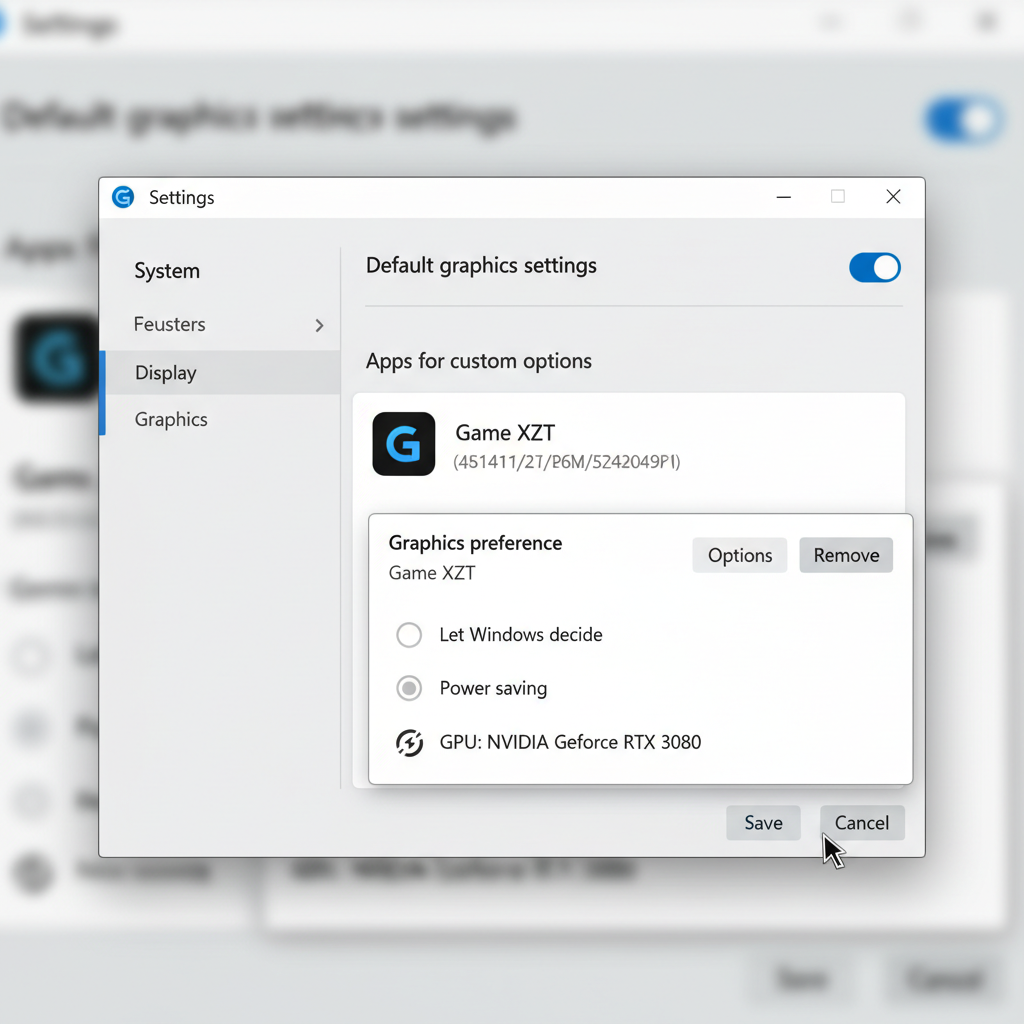
Two details people miss: pick the correct EXE, and restart the game fully (and sometimes reboot) after changing it. If the game has a launcher, you may need to add both.
Fix 2: NVIDIA Control Panel or AMD Adrenalin (per-game profile)
If Windows is set correctly but the game still refuses the dGPU, use the vendor control panel to set a per-game profile.
NVIDIA (common on gaming laptops/desktops)
- Open NVIDIA Control Panel → Manage 3D settings → Program Settings.
- Select the game (or add it), then set Preferred graphics processor to High-performance NVIDIA processor if available.
- Apply changes, then relaunch the game.
According to NVIDIA support documentation, application-specific settings can override global defaults, which is why per-game profiles often solve stubborn cases.
AMD (Adrenalin Edition)
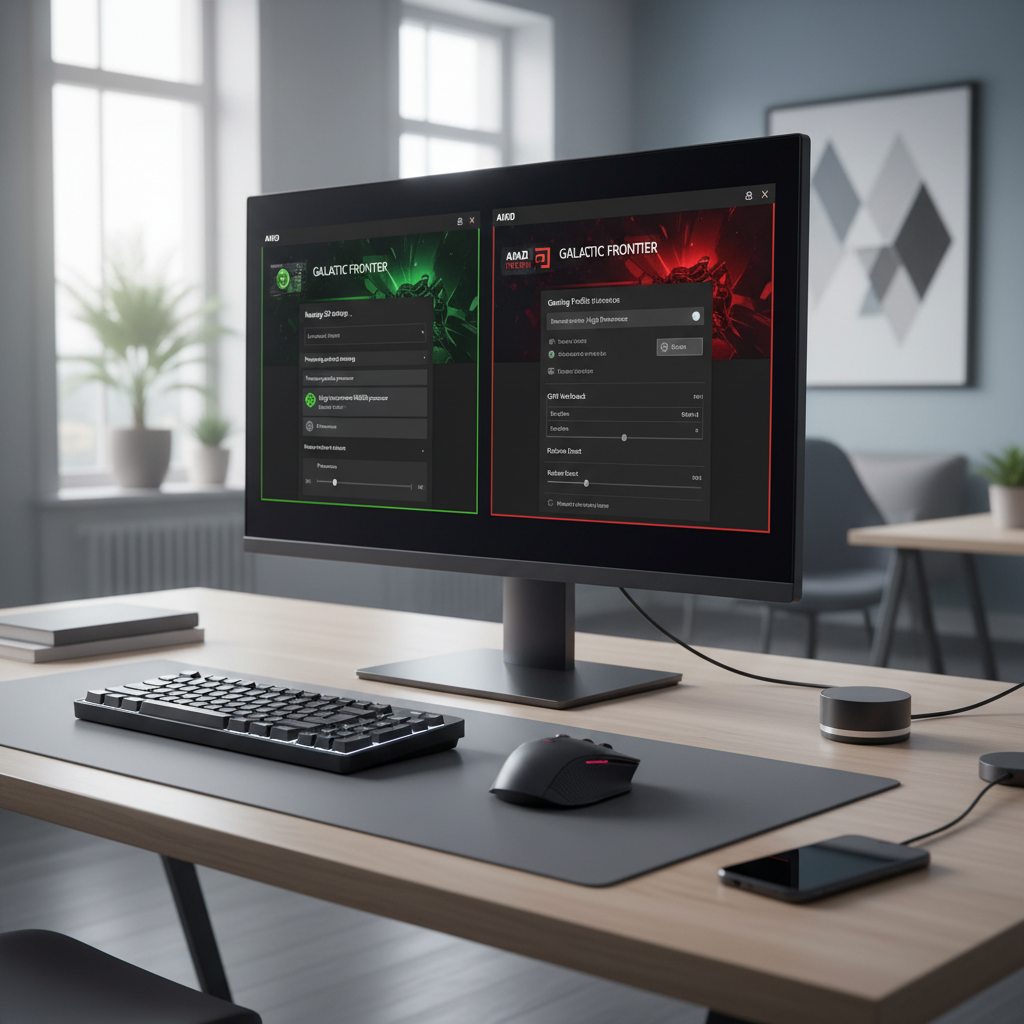
- Open AMD Software: Adrenalin Edition → Gaming → add/select the game.
- Look for switches related to graphics mode or per-game performance profiles, and favor the dedicated GPU/performance option when offered.
According to AMD support guidance, game profiles help tailor behavior per title, which matters when one game behaves differently than the rest.
Fix 3: Laptop-specific gotchas (MUX, OEM utilities, power plans)
This is where a lot of “I did everything” stories come from. Many laptops have an extra layer: OEM tools that decide when the dedicated GPU is allowed to run.
- Power: test while plugged in. Battery saver modes often block or heavily restrict dGPU use.
- Windows power mode: Settings → System → Power & battery → set a performance-oriented mode for testing.
- OEM utilities: Lenovo Vantage, ASUS Armoury Crate, MSI Center, Alienware Command Center often expose Hybrid/Discrete modes.
- MUX switch / Advanced Optimus: If your laptop supports it, switching to a discrete-only mode can make the fix “stick,” but it may reduce battery life.
According to Microsoft guidance on Windows power and graphics behavior, power settings can influence performance characteristics, so always validate your GPU choice under the power mode you actually play with.
Fix 4: Make sure you’re targeting the right executable (Steam/Epic/launchers)
If you set “High performance” but nothing changes, the usual reason is simple: you configured the launcher, not the real game process.
- Steam: Right-click game → Manage → Browse local files, locate the main game EXE (not Steam.exe).
- Epic: Find the install directory and look for Win64/Shipping executables.
- Battle.net / Riot / other launchers: add the game’s executable from the installed folder, not the launcher.
Tip: use Task Manager while the game runs, right-click the process → Open file location. That’s usually the EXE you want in Windows Graphics settings and the driver profile.
Fix 5: Driver, DirectX/Vulkan selection, and game settings that matter
Sometimes the game technically “uses” the dGPU, but performs like it doesn’t because the render path is broken, outdated, or mis-selected.
- Update GPU drivers: get drivers directly from NVIDIA/AMD/Intel when possible, then reboot.
- Clean install (if needed): if profiles feel corrupted after many updates, a clean driver install can reset bad state, but it’s optional.
- Switch render API: some games let you choose DirectX 11 vs DirectX 12 vs Vulkan. If one path causes GPU selection issues, test another.
- Disable unusual overlays: overlays can conflict with exclusive fullscreen or anti-cheat in rare cases, test with overlays off.
According to Microsoft DirectX documentation, different graphics APIs and driver paths can change how rendering devices are initialized, so trying an alternate API can be a legitimate diagnostic step.
Troubleshooting table: symptom → likely cause → what to try
| Symptom | Likely cause | Try this first |
|---|---|---|
| Game shows iGPU in Task Manager | Windows app preference set to Power saving | Windows Graphics settings → High performance |
| Settings changed, still iGPU | Wrong EXE (launcher vs game) | Find actual game EXE via Open file location |
| dGPU usage near 0% on battery | Power policy blocks dGPU | Plug in, set performance power mode |
| External monitor runs faster | Internal display routed through iGPU | Use a dGPU-wired port or MUX discrete mode |
| Only one game affected | Corrupt config or API mismatch | Reset graphics config, try DX11/DX12/Vulkan |
Key takeaways (so you don’t overthink it)
- Verify first with Task Manager GPU Engine, then change one layer at a time.
- Windows Graphics settings is the cleanest starting point for most people.
- Correct EXE selection matters more than any “performance tweak.”
- Laptops add a power layer, and OEM utilities can override your intent.
When it’s time to seek deeper help (without guessing)
If you’ve tried the OS setting, the driver profile, and verified the correct EXE, but the game still won’t use the dedicated GPU, it may be a deeper platform or hardware routing issue.
- Check BIOS/UEFI options: some systems expose iGPU/dGPU switching or MUX behavior there.
- OEM support docs: laptop model-specific port wiring and “hybrid graphics” rules vary a lot.
- Consider professional repair if the dGPU never activates in any workload, shows errors in Device Manager, or crashes under load.
If you’re unsure, a local technician or the laptop manufacturer’s support can help validate whether the dedicated GPU is functioning normally, especially if you suspect hardware or firmware trouble.
Conclusion: lock the game to the right GPU, then keep it stable
If your goal is how to fix game not using dedicated gpu, start with proof in Task Manager, force the game to High performance in Windows, then back it up with an NVIDIA/AMD per-game profile. On laptops, test plugged in and check OEM hybrid or MUX settings, because those can quietly override everything else.
Action steps that usually pay off: set Windows Graphics preference for the correct EXE, reboot once, then re-check GPU Engine while the game runs. If it flips back after updates, revisit the same two places and confirm your per-game profile still exists.
FAQ
Why is my game using the integrated GPU even though I have a dedicated GPU?
Most often Windows assigns the app to a power-saving profile, or you set the preference for a launcher instead of the real game executable. On laptops, battery and OEM hybrid graphics modes can also block dGPU use.
How do I force a game to use the NVIDIA GPU on Windows 11?
Use Settings → System → Display → Graphics, add the game EXE, then choose High performance. If it still doesn’t switch, set a per-game profile in NVIDIA Control Panel and confirm you targeted the correct EXE.
Does plugging in my laptop really matter for dedicated GPU usage?
In many cases, yes. On battery, power limits can reduce dGPU clocks heavily or prevent the dGPU from engaging for certain apps, depending on your laptop’s policies.
My FPS is low but Task Manager shows the dedicated GPU, what now?
Then the issue might be different: thermal throttling, a CPU bottleneck, wrong in-game render API, or a frame cap like V-Sync. Check temperatures, power mode, and try switching between DX11/DX12/Vulkan if the game supports it.
Which executable should I add in Windows Graphics settings for Steam games?
Add the main game EXE inside the install folder, not Steam.exe. A quick way is launching the game, then in Task Manager right-click the game process and choose Open file location.
Can an external monitor make the dedicated GPU work better?
It can, depending on how the laptop’s display outputs are wired. Some ports connect more directly to the dGPU, which can reduce overhead from routing frames through the iGPU.
Should I use a clean GPU driver install to fix GPU selection?
Sometimes it helps when profiles feel “stuck” after multiple updates, but it’s not always necessary. Try OS and per-game profile settings first, then consider a clean reinstall if behavior stays inconsistent.
If you’re still stuck after these steps, or you want a quicker diagnosis, it can help to share a screenshot of Task Manager’s GPU Engine column plus your laptop/desktop model and the game EXE path, that combo usually reveals whether the issue is a Windows preference, a profile mismatch, or a laptop hybrid graphics rule.