
how to fix game crashing to desktop randomly usually comes down to one of five buckets: unstable drivers, overheating, corrupted game files, bad overlays, or a system-level conflict you only notice when a game pushes your PC hard.
If you’re here, you probably know the pain: the game runs fine, then you’re suddenly staring at your desktop with no warning, no error, and no clue what changed. Random CTDs can feel impossible because they’re inconsistent, but the good news is they often leave patterns in Windows logs and in how the crash happens.
This guide focuses on a practical approach: identify the most likely cause first, confirm with a quick check, then apply fixes that don’t create new problems. You’ll also get a short table of symptoms-to-fixes and a step-by-step order that saves time.
What “crashing to desktop” usually means (and why it looks random)
A crash to desktop is often an application-level failure: the game process exits or gets terminated, while Windows keeps running. That’s different from a full system freeze or a blue screen, which points more strongly at drivers, RAM, or power.
The “random” part is typically timing. Many issues only trigger under specific conditions: a certain map loads, VRAM spikes, a shader compiles, an overlay hooks in, or your GPU boosts and hits a power/temperature edge. You don’t need to guess, though—you can narrow it down by watching when it happens and what else is running.
- Instant CTD on launch: commonly corrupt files, missing dependencies, anti-cheat conflicts.
- CTD after 10–30 minutes: often heat, power limits, unstable GPU/CPU boost, memory errors.
- CTD during alt-tab or overlays: overlay hook conflicts, fullscreen mode issues.
- CTD only in one game: game settings, mods, shader cache, broken install.
Quick diagnosis checklist before you change anything
Before you reinstall drivers or wipe everything, do these checks. They take minutes and help you avoid “random fixing,” where you never learn what actually caused it.
1) Confirm the crash signature in Windows
- Open Event Viewer → Windows Logs → Application, look for an Error at the crash time (often “Application Error”).
- Open Reliability Monitor (search “Reliability” in Start), find the red X, and note the “Faulting module name.”
According to Microsoft, Reliability Monitor helps track app failures and system changes over time, which is useful when crashes seem inconsistent.
2) Reproduce with a clean baseline
- Disable overlays temporarily (Steam, Discord, GeForce Experience, Xbox Game Bar).
- Remove mods and custom reshade injectors.
- Run the game once with default graphics settings.
If crashes stop under this baseline, you already learned something: the game itself may be fine, and the conflict is external.
Symptoms → likely causes → first fix (a fast mapping table)
Use this to pick a starting point instead of trying everything at once.
| What you notice | Common root cause | Best first move |
|---|---|---|
| Crash after graphics-heavy scenes | GPU driver, VRAM/OC instability | Clean driver update + revert OC |
| Crash after 15–40 minutes | Heat/power spikes | Check temps, cap FPS, adjust power |
| Crash when alt-tabbing | Overlay or fullscreen conflicts | Disable overlays, switch to borderless |
| Only one game crashes | Corrupt files, shader cache, settings | Verify files, reset config, clear cache |
| Random CTD across many games | Driver stack, RAM errors, PSU issues | Memory test + driver cleanup |
Fixes that work most often (in the right order)
If you want a sane order of operations, this is it. The idea is to eliminate high-probability causes with low downside first, then move toward deeper system checks.
1) Update (or roll back) GPU drivers the clean way
Driver issues are a top culprit for how to fix game crashing to desktop randomly, especially after major updates or when Windows Update swaps in a different driver behind the scenes.
- Update your GPU driver from NVIDIA/AMD/Intel directly, not via random download sites.
- If crashes started right after a driver update, try rolling back to the previous stable version.
- For stubborn cases, use a clean install option from the driver installer, or consider DDU in Safe Mode if you know what you’re doing.
According to NVIDIA, keeping drivers updated can improve stability and compatibility in new game releases, but in real-world troubleshooting, a rollback can be just as valid when a specific version misbehaves.
2) Verify game files and reset the game config
- Steam: Properties → Installed Files → Verify integrity.
- Epic/EA/Ubisoft apps have similar “Verify/Repair” options.
- Reset config by renaming the game’s settings folder in Documents/AppData, so it rebuilds clean.
This matters more than people think because corrupted shader cache or a broken graphics setting can crash only in specific areas, making it feel random.
3) Remove overclocks and “auto-OC” features temporarily
Even if your overclock is “stable” in benchmarks, some games trigger different instruction paths or power spikes. For troubleshooting, set CPU/GPU back to stock, and disable aggressive boost tweaks.
- GPU: reset OC in MSI Afterburner or vendor tools, set power/voltage to default.
- RAM: consider turning off XMP/EXPO just to test stability.
This step feels annoying, but it answers a key question fast: is the crash caused by instability under gaming load.
Overheating, power, and memory: the “it only crashes during real gameplay” problems
If your CTD happens mid-session, focus here. You’re looking for spikes: temperature, power draw, VRAM usage, or RAM errors.
Check temperatures and cap frame rate
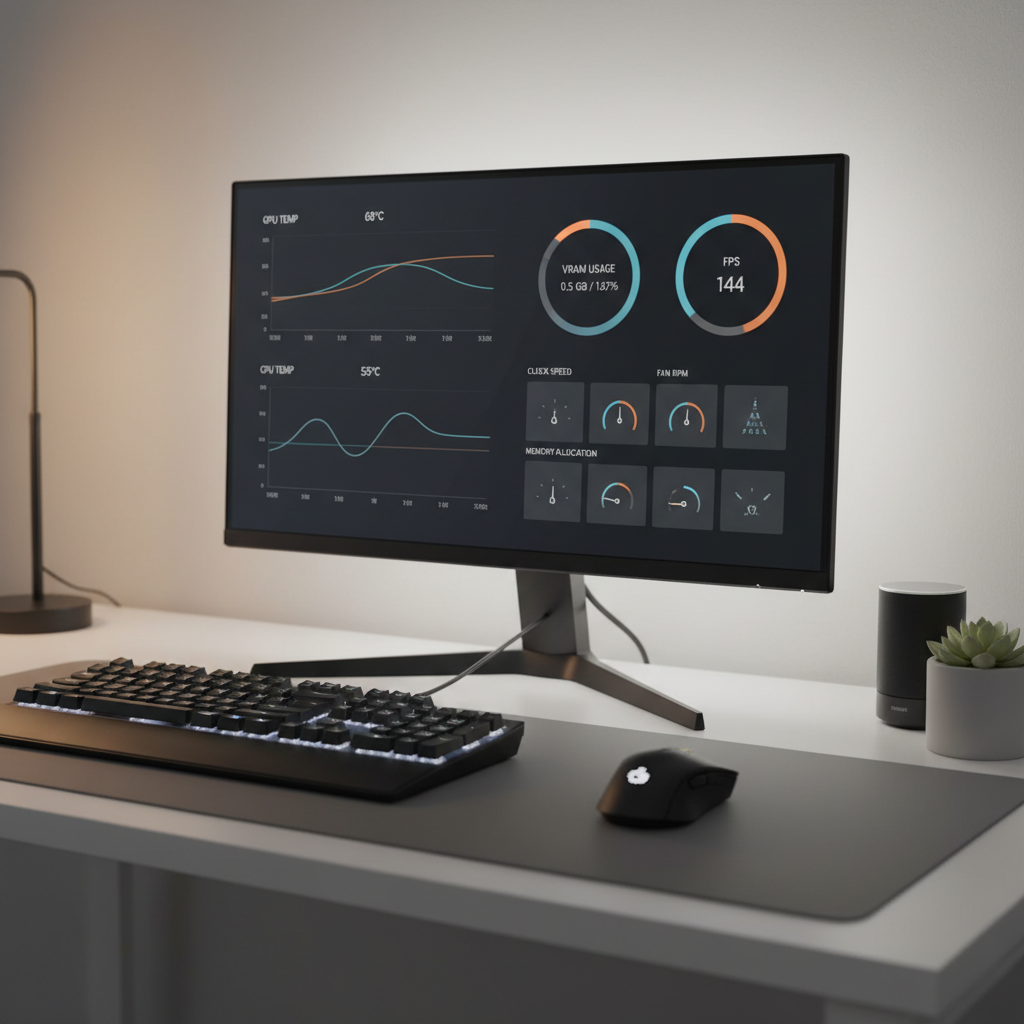
- Use a monitor tool (Task Manager Performance tab, vendor overlay, or HWInfo-type tools) and watch CPU/GPU temps right before a crash.
- Cap FPS in-game or via the GPU control panel; unlimited FPS in menus can push GPUs strangely hard.
- Clean dust filters, confirm fans ramp up, and make sure the PC isn’t pressed against a wall.
According to Intel, excessive heat can reduce stability and performance; in practice, a small temperature drop can be the difference between a clean session and repeated CTDs.
Power delivery: PSU and transient spikes
If the PC never blue screens but the game exits, power is not always the cause, but it’s still worth thinking about if you upgraded to a high-end GPU or see crashes during big explosions or loading transitions.
- Make sure GPU power cables are fully seated, and avoid questionable splitters.
- Try setting a slightly lower GPU power limit (for testing) to reduce spikes.
Memory stability checks (RAM and VRAM)
- Run Windows Memory Diagnostic as a basic start, or a more thorough third-party test if you’re comfortable.
- If crashes happen across many games, memory instability becomes more likely.
If you suspect hardware failure, it’s reasonable to stop pushing the system and ask a professional repair shop to validate PSU/RAM/GPU, especially if you’re still under warranty.
Overlays, background apps, and Windows settings that quietly break games
A big chunk of how to fix game crashing to desktop randomly is simply removing conflicts. The tricky part is that many tools behave fine 99% of the time, then collide with a specific anti-cheat, renderer, or fullscreen mode.
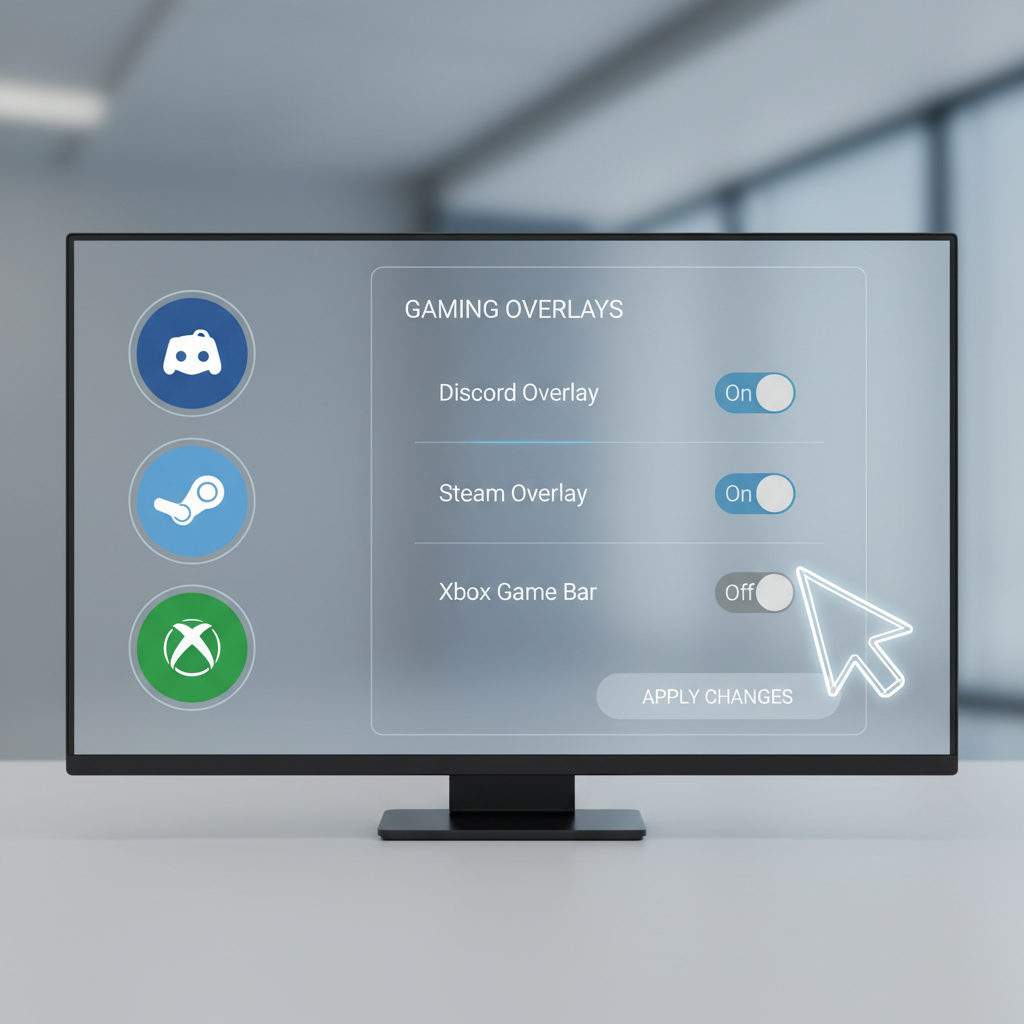
Disable overlays and capture tools (temporarily)
- Discord overlay, Steam overlay, NVIDIA/AMD recording, Xbox Game Bar, third-party FPS counters.
- Close RGB/monitoring utilities if they inject into games.
Try borderless windowed and disable “Fullscreen optimizations”
- Switch the game to borderless windowed for testing.
- Right-click game exe → Properties → Compatibility → check Disable fullscreen optimizations (test both ways).
Antivirus exceptions (carefully)
Sometimes security software blocks game file access or injects scanning at the wrong moment. If you test an exception, do it only for the game folder and only for software you trust. If you’re not sure, don’t weaken protection.
Practical step-by-step: a 30-minute crash-fix routine
If you want something you can actually follow without overthinking, this routine covers the most common wins in about half an hour.
- Step 1: Reboot, then run the game with overlays off.
- Step 2: Verify/repair the game files, then launch once with default graphics.
- Step 3: Update GPU driver, or roll back if the problem began after an update.
- Step 4: Set GPU/CPU/RAM to stock settings, test again.
- Step 5: Cap FPS (start with 60/90/120 depending on your monitor) and test one full session.
- Step 6: If still crashing, check Reliability Monitor for the faulting module and search that module name plus your game title.
Key point: Change one variable at a time. If you flip five settings and it stops crashing, you don’t really know what fixed it, and the next update will confuse you again.
When to get more help (and what to bring)
Sometimes the honest answer is that the issue is deeper than a quick tweak, especially if multiple games crash or you see hints of hardware instability.
- If you see repeated crashes across many titles even after clean drivers, consider a shop diagnostic for PSU/RAM/GPU.
- If Event Viewer points to system components (like repeated driver resets), driver and hardware checks become higher priority.
- If the game uses anti-cheat and only that title crashes, contact the game’s support with logs and crash IDs.
What to prepare: your GPU driver version, Windows version, the exact crash time, Reliability Monitor details, and what you already tried. Support teams move faster when you show your work.
Conclusion: make the crash stop, then make it stay stopped
For most players, the fastest path is boring but effective: clean up overlays, verify files, stabilize drivers, remove overclocks, then watch temperatures and power behavior under load. That combination addresses the majority of “random” CTDs without turning your PC into a science project.
If you want one action today, do this: check Reliability Monitor, then match the faulting module to the fix. If you want a second action, run one full session with overlays off and stock clocks, because that single test often clarifies what’s really going on.
FAQ
Why does my game crash to desktop with no error message?
Many games fail inside the graphics driver, an anti-cheat component, or a background hook, and the game simply exits. Reliability Monitor and Event Viewer often still record a faulting module even when the game stays silent.
How do I know if it’s the GPU driver or the game itself?
If multiple games crash, drivers or system stability move up the list. If only one title crashes, verifying files, resetting config, and clearing shader cache tend to pay off first.
Can overheating cause a crash to desktop instead of a shutdown?
Yes, in many cases heat leads to instability, clock throttling, or driver timeouts that can kill the game process without powering off the PC. Checking temps right before the crash is more useful than checking them after.
Does disabling XMP/EXPO really help with random CTDs?
It can, mainly as a test. Some systems are borderline stable at higher memory profiles, and certain games are more sensitive than general benchmarks.
Should I reinstall Windows to fix random game crashes?
It’s a last-resort move. Most of the time you can resolve how to fix game crashing to desktop randomly with driver cleanup, file verification, and stability checks without nuking your setup.
Do overlays like Discord or Steam actually cause crashes?
They can, especially when they hook into rendering or conflict with anti-cheat. Disabling them for a single test session is low effort and sometimes instantly revealing.
What if my game crashes only when I alt-tab?
Try borderless windowed mode, turn off overlays, and test the fullscreen optimizations setting. Alt-tab crashes often involve how the game transitions display modes rather than raw hardware problems.
If you’re still stuck after the checklist, and you’d rather not keep guessing, a more streamlined path is to share your Reliability Monitor error details and system specs with a knowledgeable technician or the game’s support team so the next steps are based on evidence, not trial and error.