
If you’re wondering how to install apk on meta quest 3, what you’re really trying to do is “sideload” an Android app that isn’t available in the Meta Quest Store.
That can be totally reasonable for testing, developer builds, or apps distributed outside the store, but it’s also where people get stuck on permissions, drivers, USB prompts, and the classic “APK installed but nowhere to be found” moment.
This guide walks you through the most reliable methods, what to prepare before you connect anything, and how to troubleshoot the common failure points without guessing.
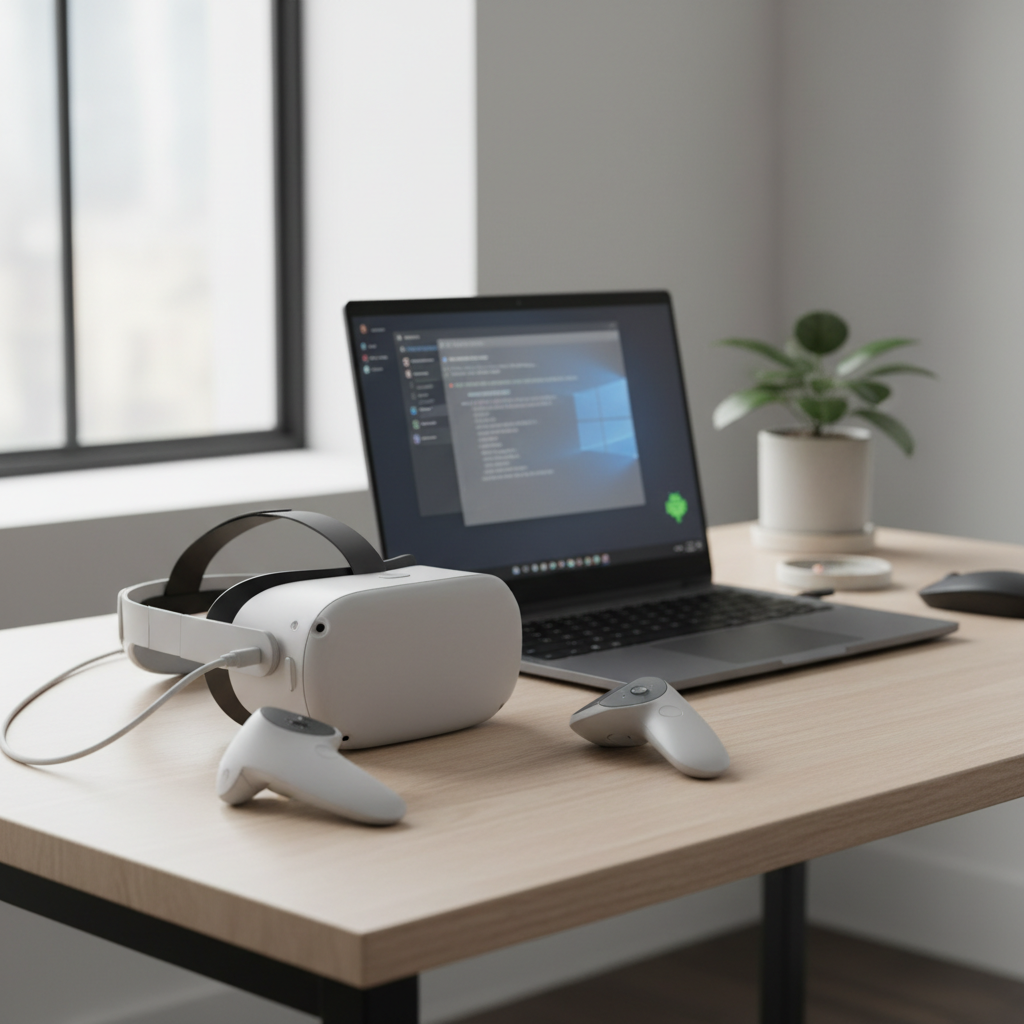
What “installing an APK” means on Quest 3 (and what it doesn’t)
An APK is the standard Android app package format. Meta Quest 3 runs Android under the hood, so it can install APK files, but not through the normal store flow.
Most of the time, installing an APK on Quest 3 means you’re using ADB (Android Debug Bridge) through a computer, or a tool that wraps ADB for you.
- What you can do: install compatible Android apps, run internal test builds, use open-source utilities.
- What you can’t assume: every phone APK will work in VR, or that it will show up on the main app grid like a store app.
According to Android Developers, ADB is the official command-line tool for communicating with Android devices for debugging and app installation. Quest sideloading tools rely on that same mechanism.
Before you start: a quick compatibility and safety checklist
Before you follow any “how to install apk on meta quest 3” steps, it’s worth doing a 60-second reality check, because many failures come from the APK itself, not your cable or laptop.
Compatibility checks (fast, practical)
- CPU/ABI: Quest 3 is typically ARM64. If the APK is x86-only, it usually won’t run.
- Android version targeting: very old apps can break on newer Android builds, especially around storage permissions.
- VR support: non-VR apps may run as 2D “panel” apps, or may feel awkward with controllers.
- Services dependencies: apps that require Google Play Services often fail or behave strangely on Quest.
Safety and account sanity
- Use trusted sources: only sideload APKs from developers you trust. If you can’t verify the source, skip it.
- Expect permission prompts: Quest will ask to allow USB debugging. Don’t approve prompts you don’t understand.
- Keep a rollback option: know how to uninstall the app if it crashes or spams popups.
According to Meta documentation around developer features, enabling developer mode is intended for development and testing, so treat it like a “power tool,” not a default everyday setting.
Method 1 (most common): install APK on Quest 3 with SideQuest
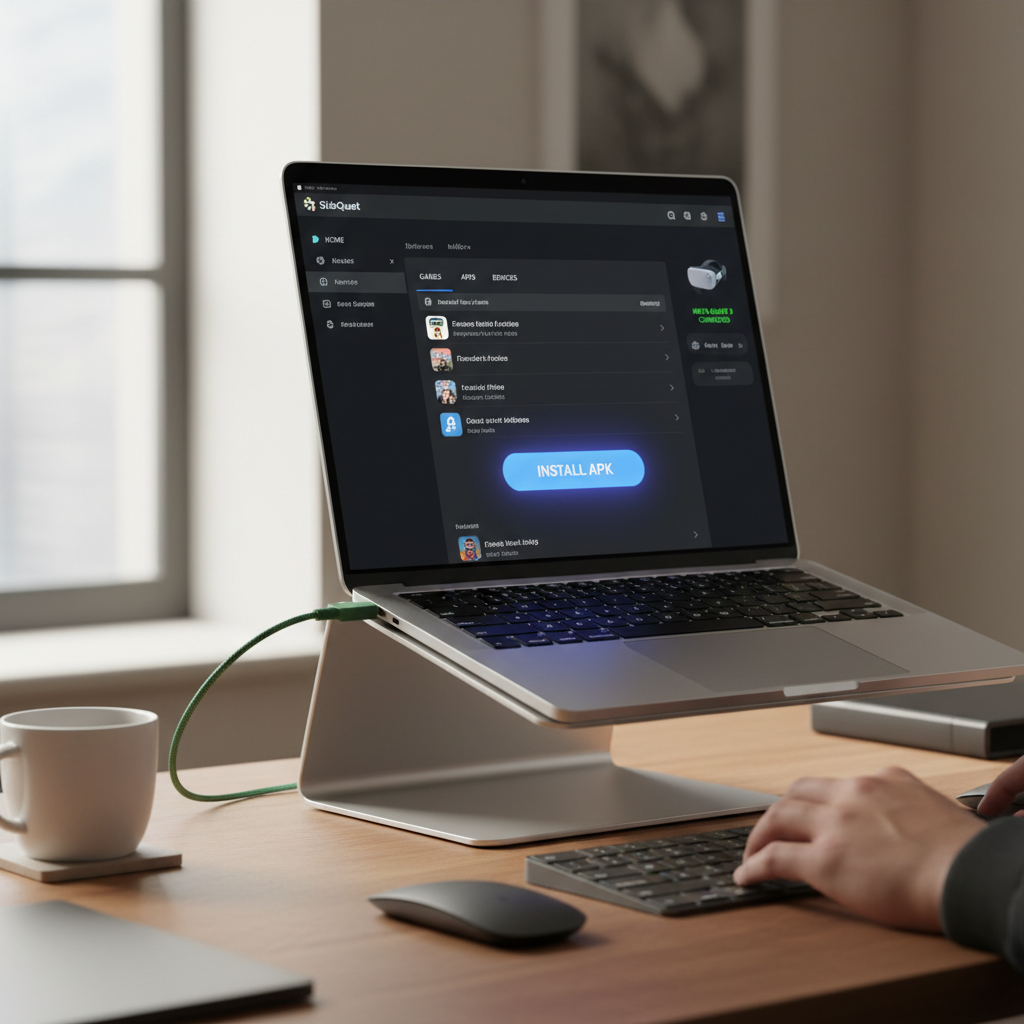
For most people, SideQuest is the least painful path because it bundles the workflow: device detection, ADB access, and a clean install button.
What you need: a Windows or macOS computer, a USB-C cable capable of data transfer, and the APK file.
Step-by-step
- Enable Developer Mode for your Meta account and Quest 3 (typically done through the Meta Quest mobile app settings).
- Install SideQuest on your computer, then open it.
- Connect Quest 3 via USB-C, put on the headset, and approve USB debugging when prompted.
- In SideQuest, confirm the device indicator shows connected (usually a green dot or “connected” status).
- Click Install APK file from folder, select your APK, and wait for the install confirmation.
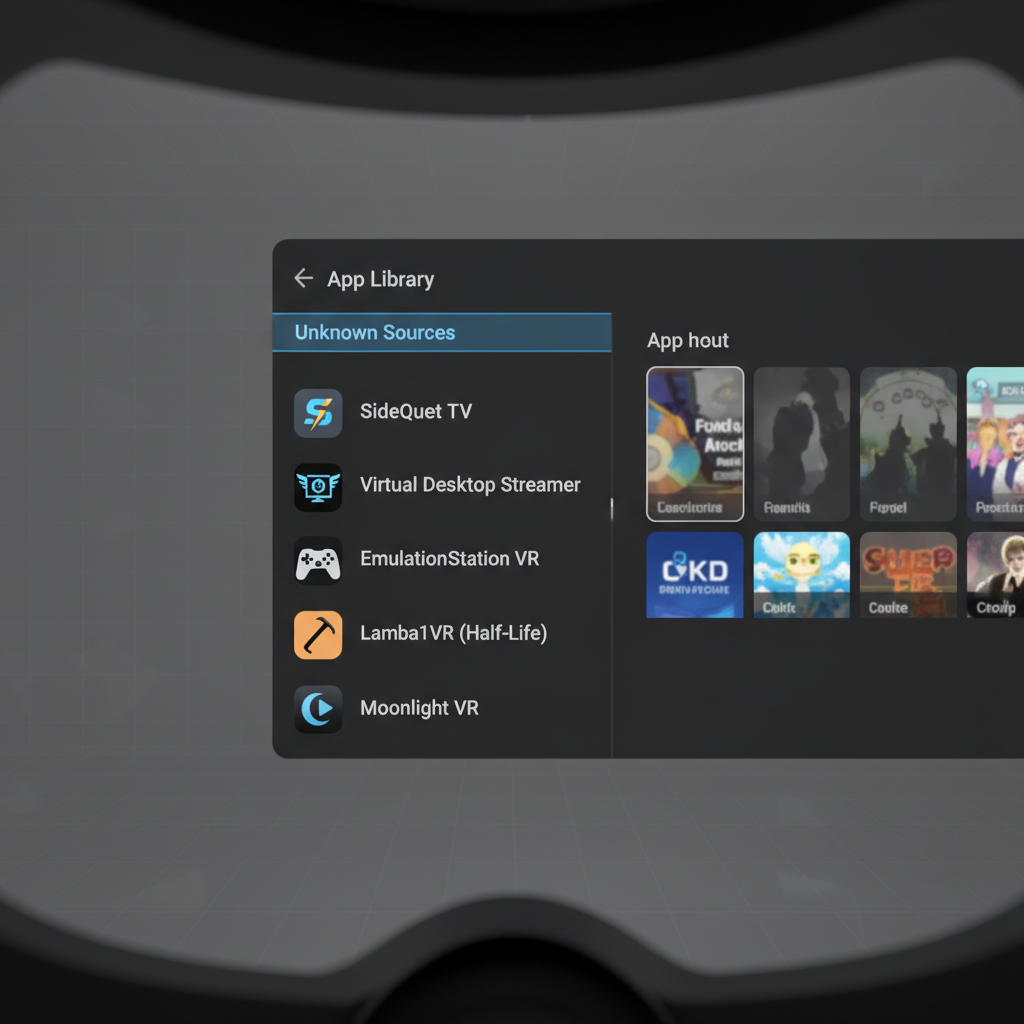
If the install succeeds but you “can’t find the app,” don’t panic. Many sideloaded apps appear under Unknown Sources in the app library.
Method 2 (clean and direct): install with ADB commands
If you prefer minimal tooling, ADB is straightforward once it’s set up. It’s also the method you’ll see in many developer workflows, and it’s great for troubleshooting because you can see real error messages.
What to prepare
- Install the Android SDK Platform Tools (ADB package) on your computer.
- Enable Developer Mode on Quest 3 and approve USB debugging.
Core commands (typical flow)
- Check device connection:
adb devices - Install an APK:
adb install path/to/your-app.apk - Reinstall (keep data when possible):
adb install -r path/to/your-app.apk
If you see an “unauthorized” status, it usually means you didn’t approve the debugging prompt inside the headset, or the authorization got reset.
Where to find sideloaded apps on Quest 3 (and why they “disappear”)
This is the part that wastes the most time. People install successfully, then assume it failed because the app doesn’t show in the normal grid.
- Open the app library and look for the filter dropdown.
- Select Unknown Sources to view sideloaded apps.
- If the app is a 2D Android app, it may open in a panel-style window rather than a full VR environment.
Also, some apps install but crash instantly due to missing permissions, incompatible graphics requirements, or relying on services Quest doesn’t include.
Troubleshooting: the issues people actually hit (and quick fixes)
When “how to install apk on meta quest 3” searches spike, it’s usually because something went wrong in one of these spots.
Common problems and fixes
| Problem | What it usually means | What to try |
|---|---|---|
| Device not detected in SideQuest | Cable is charge-only, drivers missing, or no debugging approval | Try another USB-C cable, re-plug, approve prompt in headset, install/update drivers (Windows) |
adb devices shows “unauthorized” |
Debug authorization not accepted | Put headset on, accept USB debugging, toggle USB debugging off/on if needed |
| Install fails with “parse error” | Corrupt APK or incompatible package | Re-download from the original source, confirm it’s ARM64-compatible |
| App installs but doesn’t appear | It’s in Unknown Sources, or it has no launcher activity | Check Unknown Sources, consider a launcher app, or install a build intended for Quest |
| App opens then closes immediately | Incompatible dependencies, permissions, or rendering | Try a different version, review app requirements, uninstall and reinstall clean |
One more thing: if you’re on Windows and everything looks correct but connections stay flaky, it’s often a driver/USB port issue. Switching ports (USB-A vs USB-C on the PC side) can be weirdly effective.
Practical install tips that save time (especially on your second and third APK)
Once you get one APK installed, the next installs should feel routine. A few habits help you avoid repeating the same setup pain.
- Name your APK files clearly (app-name_version_date.apk). Future you will thank you.
- Keep a “known good” cable for data transfer, not a random charging cord.
- Update intentionally: if an app works, consider saving that APK version before updating.
- Uninstall when testing: clean installs help confirm whether a bug is caused by cached data.
Key takeaways
- SideQuest is usually the fastest and most beginner-friendly workflow.
- ADB gives you clearer error messages when something fails.
- If the APK “vanishes,” check Unknown Sources before reinstalling.
- Not every Android APK is realistic to run on Quest 3, even if it installs.
Conclusion: the safest way to sideload without turning it into a weekend project
If your goal is simply learning how to install apk on meta quest 3, start with SideQuest, confirm USB debugging approval inside the headset, and verify the app under Unknown Sources before you redo anything.
If you hit repeated install errors, switch to ADB for one attempt so you can see the exact failure message, then decide whether the issue is your setup or the APK compatibility.
Action step: pick one method, do one clean install end-to-end, then keep that setup as your baseline so future sideloading stays predictable.
FAQ
Is it legal to install an APK on Meta Quest 3?
Often it can be, especially for apps you’re allowed to use, open-source tools, or internal testing builds. The legal and policy side depends on the app’s license and how it’s distributed, so it’s smart to read the developer’s terms and follow Meta’s platform rules.
Why does my APK install but not show up in the app library?
Most sideloaded apps show under Unknown Sources, not the main list. In some cases an APK has no launcher icon or isn’t designed to be launched normally, which can make it feel “invisible” even though it installed.
Do I need a PC to sideload on Quest 3?
In many cases, yes, because the most reliable approaches use ADB via a computer. There are device-only workflows people discuss, but they’re more variable and can break more easily after updates, so a PC/Mac remains the dependable option.
Can I install any Android phone app as an APK on Quest 3?
Not realistically. Some install but run poorly, and others depend on Google Play Services or phone sensors. A Quest-friendly build, or an app specifically tested on Quest hardware, usually gives a smoother result.
What does “USB debugging” do, and is it safe to leave on?
USB debugging allows ADB to communicate with the headset for development tasks like installing apps. It’s useful, but you should only approve debugging prompts from computers you trust, and it’s reasonable to disable it when you’re done if you’re cautious.
How do I uninstall a sideloaded APK from Quest 3?
You can often uninstall from the headset’s storage/apps settings, or via SideQuest. If you use ADB, you can uninstall by package name, which is helpful when an app crashes before you can manage it in the UI.
Why does ADB say “device unauthorized” even though my cable works?
That message usually means the headset never approved the debugging key for that computer, or the authorization got reset. Put the headset on, look for the prompt, and if it doesn’t appear, reconnect and try toggling the debugging setting.
Could sideloading cause performance or stability issues?
It can, depending on the app. Poorly optimized apps may spike CPU/GPU usage or crash the shell. If you notice system instability, uninstall the last sideloaded app and reboot, and consider seeking help from the app’s developer if it’s a test build.
If you’re doing this often, or you need a more “repeatable” setup for a team, it may be worth standardizing your sideload workflow with one tool (SideQuest or ADB scripts), a verified cable, and a small checklist so installs stay quick and you spend time testing apps instead of fighting permissions.