
how to fix packet loss in warzone and fps usually comes down to one thing: finding where packets drop (your Wi‑Fi, your router, your ISP route, or the game server) and fixing that specific layer instead of changing random settings.
If you play Warzone or any FPS, packet loss feels worse than “normal lag” because it creates stutters, rubber-banding, hit-reg weirdness, and those moments where you swear you shot first. The frustrating part is it can look like a server problem even when the real culprit sits in your living room.
This guide gives you a quick way to classify your situation, a practical checklist you can run in 15–30 minutes, and a few fixes that actually move the needle for most US home networks. No magic toggles, just the stuff that tends to work.
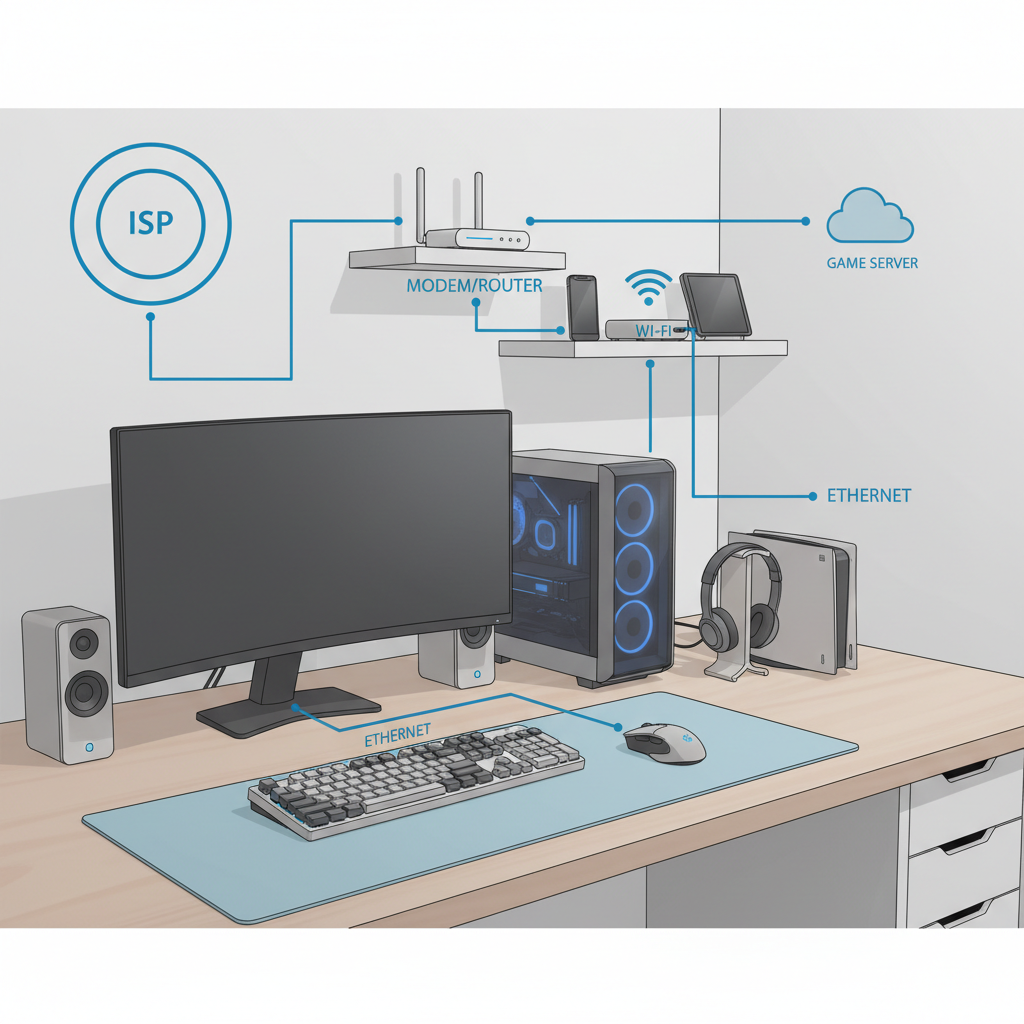
What packet loss looks like in Warzone and why it happens
Packet loss means small chunks of game data never arrive, or arrive too late to matter. Your game can try to recover, but in fast shooters the “recovery” often shows up as micro-teleports, delayed inputs, or inconsistent gunfights.
Common real-world causes tend to fall into four buckets:
- Local Wi‑Fi instability: interference, weak signal, band steering issues, crowded apartment networks.
- Router/modem saturation: bufferbloat (queues build up), overheating, old firmware, too many devices.
- ISP path problems: congestion in your neighborhood, bad peering route, maintenance, noisy lines.
- Server-side issues: game server load or a poor match to a far-away datacenter.
According to the Federal Communications Commission (FCC), congestion and overall network performance can vary by location and time of day, which is why some players only see loss at peak hours.
Quick self-check: identify where the loss is coming from
Before you change settings, run a quick reality check. You’re trying to answer: “Is it my home network, or outside my house?”
15-minute classification checklist
- Only Warzone/FPS affected, everything else seems fine: could be server routing, NAT issues, or game-specific ports, but still often router queueing.
- All online apps affected (Discord drops, streams buffer, web feels sluggish): likely local network or ISP.
- Loss spikes only on Wi‑Fi, Ethernet feels stable: likely RF interference or weak signal, not “the servers.”
- Happens at 7–11pm more than mornings: often ISP congestion or neighborhood contention.
- Everyone in the house uploading (cloud backups, TikTok, Zoom): common trigger for bufferbloat and packet loss symptoms.
Key point: If Ethernet is clean and Wi‑Fi is not, focus on Wi‑Fi placement/band/channel before you touch in-game settings.
Fast fixes that usually work (start here)
This is the “don’t overthink it” section. Many cases of how to fix packet loss in warzone and fps improve dramatically with these basics.
1) Switch to wired Ethernet (even temporarily)
- Run a long cable for a test session. If loss disappears, you just proved Wi‑Fi is the main factor.
- If cabling is impossible, consider MoCA (over coax) or a quality powerline kit, but results vary by home wiring.
2) Reboot with intent (modem first, then router)
- Unplug modem for ~60 seconds, then power it up and wait until fully online.
- Power on the router next, then your console/PC.
- If you frequently “fix it by rebooting,” that often signals aging hardware, heat, or firmware issues.
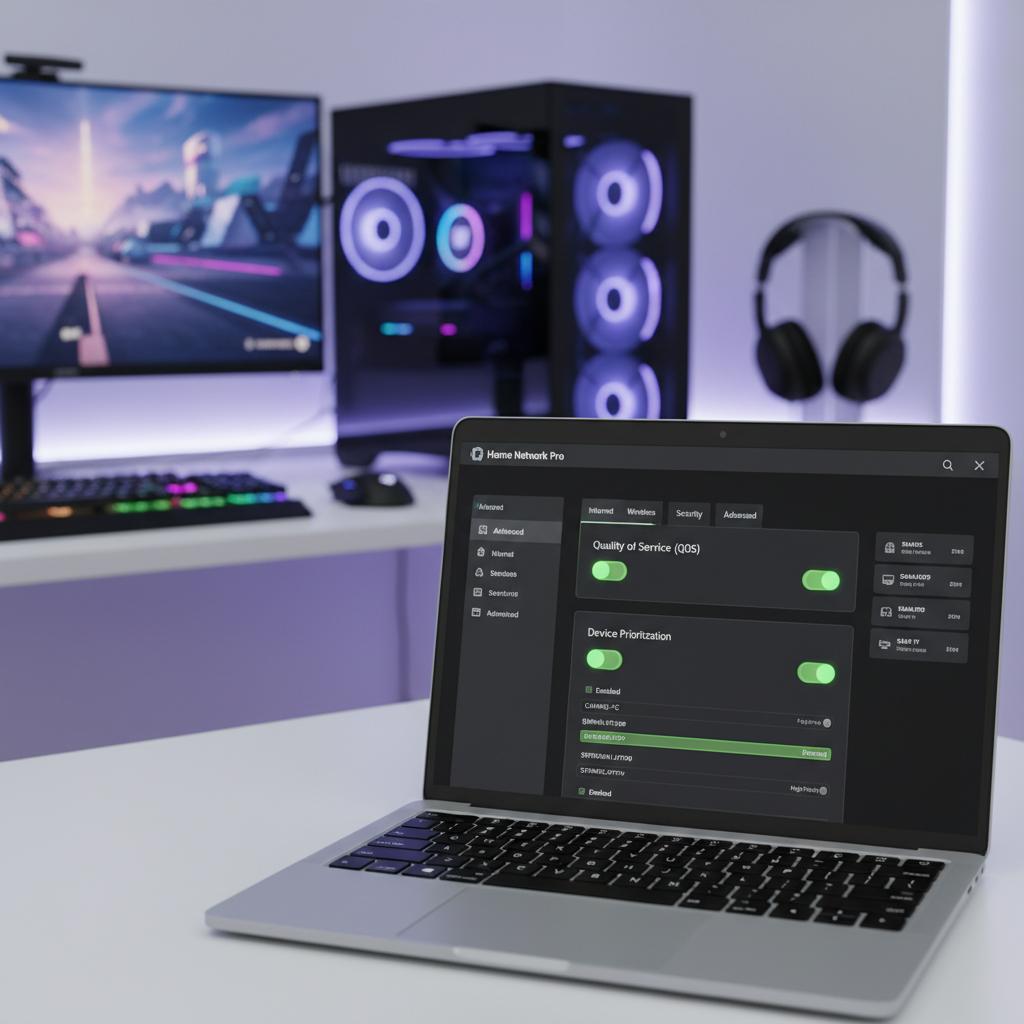
3) Kill background uploads and set device priority
- Pause cloud backups, Steam/Epic updates, console auto-updates.
- On many routers, enable QoS or “device priority” for your gaming device.
Fix by scenario: Wi‑Fi, router settings, or ISP route
Once you know the likely layer, you can stop guessing and apply the right kind of fix.
If you’re on Wi‑Fi: make it boring and stable
- Use 5 GHz when close to the router, or 6 GHz if you have Wi‑Fi 6E/7 and compatible devices. Use 2.4 GHz only if distance/walls are the problem.
- Move the router: higher shelf, open air, away from TVs, microwaves, and thick walls. Small move, big change.
- Split SSIDs (separate names for 2.4/5): band steering can bounce you mid-match.
- Pick a cleaner channel: on 5 GHz try non-DFS channels if DFS events cause drops in your area, though availability varies by model and region.
If you use a mesh system, test connecting your gaming device to the main node instead of a satellite. Wireless backhaul can be a hidden bottleneck, especially in dense neighborhoods.
If your router is the bottleneck: reduce queueing and overload
- Enable SQM/Smart Queue Management if your router supports it. This is one of the most practical fixes for “my ping is fine but I still stutter.”
- Set bandwidth limits in QoS slightly below your real speeds (for example 85–95%) so the router controls the queue instead of the modem/ISP edge.
- Update firmware, then avoid “gaming boost” gimmicks that rewrite settings unpredictably.
- Check heat and age: consumer routers that run hot can throttle or drop under load.
According to the National Institute of Standards and Technology (NIST), keeping devices updated reduces exposure to known issues; in router terms, firmware updates can also fix stability bugs that show up as random drops.
If it smells like ISP routing: collect evidence, then escalate
ISP issues are real, but you’ll get further if you bring specifics instead of “Warzone feels bad.”
- Run a few short tests at different times: one during the problem window, one off-peak.
- Try a different path: phone hotspot test, or a VPN test (not as a permanent crutch, more as a routing experiment).
- If only one game suffers, it may be peering to that game’s datacenter rather than your whole connection.
VPNs can sometimes help by changing your route, but they can also add overhead and jitter. Treat it as a diagnostic tool, not a guaranteed fix.
Warzone + FPS-specific settings that can reduce packet loss symptoms
Game settings won’t fix a broken network, but they can make bad conditions less painful.
In-game network toggles to review
- On-demand texture streaming: turning it off can reduce background downloads that compete with gameplay traffic, especially on tighter connections.
- Telemetry/graphs: enable network stats so you can correlate spikes with actions like entering a dense area or late-circle fights.
- Limit background apps on PC: overlays, capture tools, and browser streams can cause upload bursts or CPU spikes that feel like network loss.
If you’re chasing how to fix packet loss in warzone and fps, don’t ignore the boring PC side either: unstable drivers, power saving modes, or a USB Wi‑Fi adapter underperforming can look like “packet loss.”
Troubleshooting table: symptom → likely cause → what to do next
Use this as a shortcut when you’re not sure which lever to pull.
| Symptom | Likely cause | Next step that’s worth trying |
|---|---|---|
| Packet loss spikes only on Wi‑Fi | Interference / weak signal / band switching | Test Ethernet, split SSIDs, move router, use 5/6 GHz |
| Loss when someone uploads or streams | Bufferbloat / router queue overload | Enable SQM/QoS, cap upload, pause backups |
| Fine in mornings, bad at night | ISP congestion | Document times, test hotspot, contact ISP with notes |
| Only one game/server region feels bad | Peering/routing to that datacenter | Try different region if available, VPN test for routing |
| Ethernet still shows loss | Line noise / modem issue / upstream ISP problem | Check modem signals/logs, swap cable, ISP support |
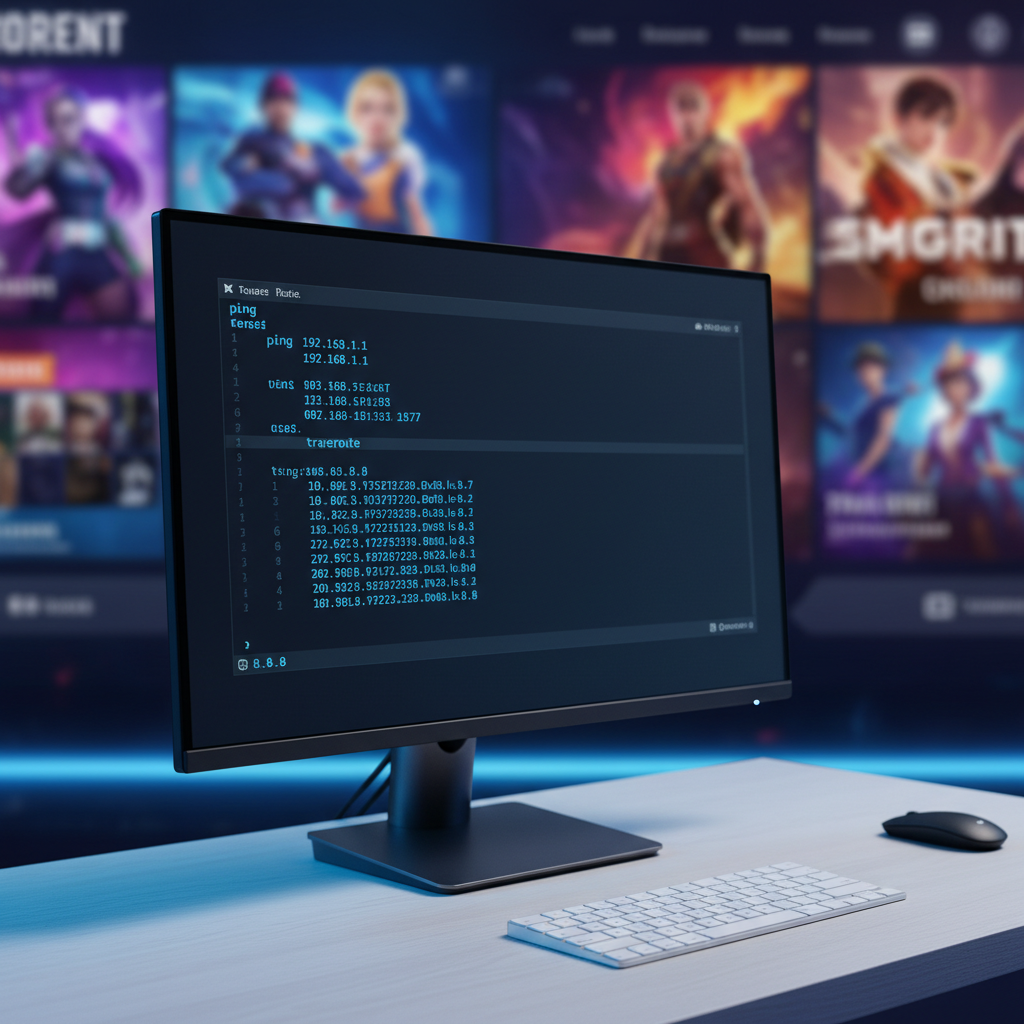
Step-by-step: a practical 30–60 minute fix plan
If you want a simple order of operations, this is the one that wastes the least time.
- Step 1: Play one match on Ethernet. If that stabilizes, commit to improving Wi‑Fi or staying wired.
- Step 2: Reboot modem/router properly, then retest.
- Step 3: Turn off heavy uploads, pause updates, retest.
- Step 4: Enable QoS/SQM and set bandwidth caps slightly below your measured speeds, retest.
- Step 5: Wi‑Fi tune-up: 5/6 GHz, router placement, split SSIDs, try a different channel.
- Step 6: If Ethernet still drops, check cables, modem health, then contact ISP with a time log and notes.
Key takeaways: Prove the layer, fix that layer, then only tweak game settings as a finishing touch. That’s how most players get from “random stutter” to “predictable and playable.”
When you should involve your ISP or a network pro
If you’ve done the wired test and still see loss, this often moves beyond quick home tweaks.
- Consistent loss on Ethernet across multiple games and services.
- Modem signal warnings in its status page, frequent disconnects, or repeated reboots.
- Large ping swings that correlate with neighborhood peak times for weeks.
Your ISP can run line tests and check node congestion. If you rent their gateway, swapping it can be a reasonable next step. If you own your modem, confirming compatibility with your ISP plan matters, and in some cases you may want to consult a qualified technician rather than guessing on cabling or signal levels.
Conclusion: make packet loss a solvable problem, not a mystery
Most “packet loss” complaints in Warzone and FPS games end up being Wi‑Fi instability or router queueing under load, with ISP routing and server issues making up the rest. If you test Ethernet early, tune QoS/SQM, and clean up your Wi‑Fi environment, you usually get a clear answer fast.
If you want one simple action today, do the Ethernet A/B test, then adjust only what the test points to. That single check prevents hours of chasing the wrong fix.
FAQ
Why do I get packet loss in Warzone but not in other games?
It can happen when Warzone routes you to a different datacenter or takes a different ISP path. It also may be more sensitive to upload spikes and queueing than slower-paced games, so router bufferbloat shows up more clearly.
Does a VPN fix packet loss in Warzone?
Sometimes it helps by changing the route to the server, but it can also add latency or jitter. It’s best used as a test: if a VPN improves stability, that hints at a routing issue worth reporting to your ISP.
Is Wi‑Fi 6 or Wi‑Fi 6E worth it for FPS games?
It can be, especially in crowded areas where interference is the real enemy. Wi‑Fi 6E’s 6 GHz band often has more breathing room, but range is shorter, so placement still matters.
What router setting helps most with packet loss symptoms during fights?
On many home networks, SQM or well-configured QoS helps the most because it controls queueing when upload/download suddenly spikes. If your router lacks SQM, basic device priority plus upload limiting can still help.
How can I tell if my ISP is the problem without fancy tools?
Time-of-day patterns are a big clue. If it’s consistently worse at night, and Ethernet doesn’t change it, your ISP path or local congestion becomes more likely. A quick hotspot test can also separate “home/ISP” from “game/server.”
Should I open ports or use UPnP to reduce packet loss?
Port forwarding and UPnP are more about NAT connectivity than true packet loss, but strict NAT can create matchmaking or voice issues that feel similar. If you enable UPnP, keep firmware updated and avoid stacking both UPnP and manual forwards unless you know your router’s behavior.
Can bad Ethernet cables cause packet loss?
Yes, especially damaged or very low-quality cables, or loose connectors. Swapping to a known-good Cat5e/Cat6 cable is a quick, cheap test before you assume it’s the ISP.
If you want a simpler path
If you’re stuck cycling settings and still can’t pin down the cause, a guided approach helps: document when loss happens, run a wired comparison, then tune QoS/SQM and Wi‑Fi in that order. If you’d rather not troubleshoot alone, asking a local network technician or your ISP for line diagnostics can save time, especially when Ethernet still shows drops.